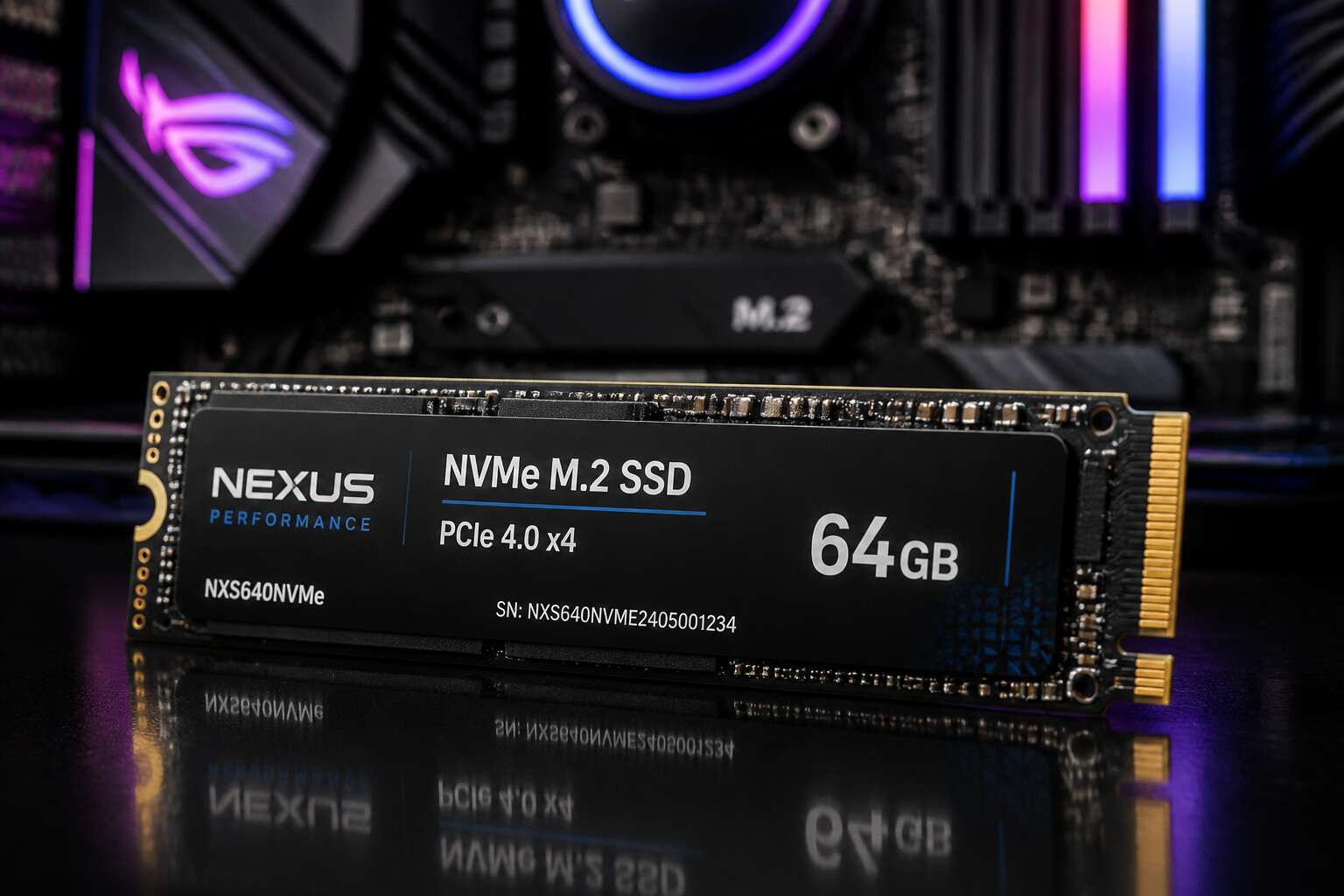
Understanding NVMe Technology
The Shift from SATA to NVMe
SATA III caps at 600 MB/s. Modern NVMe drives push past 3,000 MB/s. The shift from SATA to NVMe is an architectural change, not a cosmetic update. NVMe speaks directly to the CPU through PCIe lanes, dropping the legacy controller that slowed transfers for two decades.
Consider an nvme 64gb module. The capacity seems modest, but the interface transforms everyday performance. When Eskom grants you a few precious hours of power, your storage must not waste a single second. Applications load faster, and the difference is obvious after one reboot!
Here is what changes when you switch:
– Command queues expand from 32 to 65,535
– Latency drops to under 20 microseconds
– Sequential reads exceed 1,000 MB/s
These figures matter more than raw capacity. An nvme 64gb drive delivers the full speed advantage without the premium price of larger units.
Key Performance Advantages
The value of an nvme 64gb drive extends beyond raw file transfers. In South Africa, where load shedding is a daily reality, efficiency is paramount. A smaller drive forces discipline. You install only essential applications, which keeps the file system lean and the controller less burdened. This translates to a snappier system, not because of the capacity, but despite it.
This specific configuration thrives on sustained throughput. When the power returns, you need your machine ready to work immediately. A large mechanical drive takes time to spin up, but an nvme 64gb module is instant. That immediacy is a quiet relief, a small victory against the interruptions of the grid.
Where these advantages become tangible:
– The NAND flash wears evenly as there is less space to fill
– Drive health reporting remains accurate due to shorter write paths
– Operating system page files operate faster with PCIe bandwidth
This setup proves that physical size does not dictate digital agility. It offers a stable platform for essential tasks, allowing your system to breathe even when the storage space is limited.
Flash Memory Essentials
At the heart of every nvme 64gb drive lies a silent architecture of NAND flash cells. Each cell traps electrons in a floating gate, a delicate act of imprisonment that defines the entire medium. When the grid fails and the lights abandon you, these cells retain their charge, holding data in a state between memory and forgetting.
This is not a technology of motion. There are no spinning platters, no trembling read heads. The flash memory operates through tunnel effect, where quantum mechanics replaces brute force. A single electron can alter a threshold voltage, shifting a cell from one state to another. In an nvme 64gb module, the compartmentalised cell layout reduces parasitic interference between adjacent gates.
- Single-level cells hold one bit and endure approximately 100,000 program/erase cycles
- Triple-level cells hold three bits but survive roughly 3,000 cycles
- Fewer dies per package allow the controller to allocate spare blocks more generously
Wear levelling distributes writes across available blocks, delaying the inevitable decay. The controller becomes a steward of entropy.
Evaluating Compact Storage Solutions
Where Smaller Capacities Fit
Capacity figures dominate storage discussions! But compact solutions earn their place when you evaluate the entire system. The nvme 64gb form factor suits devices where heat, space, and power budgets are tight. Larger drives add cost and unused silicon.
Industrial controllers, network appliances, and digital signage run fixed software. These systems need fast boot times and stable read operations. A 64GB NVMe drive delivers this performance without the overhead of multi terabyte storage.
Typical deployments cover a narrow set of tasks:
- Point of sale terminals with local caching
- Edge gateways processing sensor data
- Upgraded laptops for basic office work
For South African businesses, this matters. Old laptops and embedded gear often sit unused because users assume they need large storage. The 64GB NVMe option provides reliable speed at a low price point. Cloud based applications make this workable.
Comparing Storage Options
Most South African businesses discard functioning hardware because the storage appears obsolete. That assumption overlooks how workloads actually operate. Cloud applications hold persistent data, leaving local drives for system calls, cache reads, and authentication tokens.
The correct approach to evaluating compact storage solutions is measuring what the device will actually execute. Endurance ratings matter. Sustained read performance matters. When assessing a nvme 64gb option, both outweigh headline capacity.
- Power draw during peak write cycles
- Firmware stability during continuous uptime
- Thermal output inside sealed enclosures
- Warranty terms aligned to the hardware lifespan
Comparing storage options against these parameters reveals why a nvme 64gb drive suits industrial controllers and point of sale terminals. Cost per gigabyte may look steep next to large HDDs, but the applicable cost is per usable operation per year.
South African import costs and exchange rates sharpen this logic. Unused silicon is a quiet operational drain.
Cost-Benefit Analysis
The cost logic for compact flash storage flips entirely when you calculate per operational year instead of per gigabyte. A 500GB hard drive sitting ninety percent idle is pure expense. A nvme 64gb unit handling transactional logs and boot processes for five years delivers measurable value from every byte. The price difference between these drives amounts to a few hundred rand. The difference in long term reliability and speed is substantial.
For South African businesses, the import cost and exchange rate already inflate hardware prices upfront. Paying for unused capacity in a large drive compounds that penalty daily. Here is what actually matters when you audit the numbers:
- Warranty length compared against the expected replacement cycle of the host machine
- Controller efficiency, which dictates whether the drive draws minimal power during idle states
- Random read input/output per second, since that is what point of sale terminals hammer constantly
Every drive has a finite write endurance. A nvme 64gb unit is often speced to match the operational life of an industrial controller. Allocating a smaller flash pool for the exact workload the device handles removes the temptation to store non critical data locally, which is the real hidden cost in any storage deployment.
Selecting the Right Drive
M.2 vs U.2 Form Factors
A drive’s physical shape dictates its fate as much as its speed. When selecting between M.2 and U.2, consider your chassis and workload. M.2 sticks are slender, perfect for tight builds, but they throttle when hot. U.2 drives occupy a 2.5 inch bay and accept more power, making them steadier under pressure.
U.2 suits servers where an nvme 64gb unit runs 24/7. M.2 fits personal rigs with limited space. That said, both deliver identical command protocols.
- M.2 uses the motherboard slot directly
- U.2 requires a cable and a drive caddy
The real divider is thermal endurance. Sustained writes push U.2 ahead, while M.2 wins on simplicity.
Compatibility and System Requirements
An nvme 64gb drive fits neatly into any modern system, but only if the bus and firmware agree. Compatibility starts with the physical slot. Many M.2 ports accept both SATA and NVMe, while others reserve themselves strictly for one protocol. Your motherboard manual tells you which one applies.
Firmware matters equally. Some older BIOS versions fail to expose an nvme 64gb drive as a boot option, even when the OS sees it perfectly. Before installation, confirm the following:
- Confirm the M.2 key orientation matches your slot.
- Update your BIOS to the latest revision.
- Set the storage mode to AHCI or NVMe (not RAID) in setup.
System requirements stay modest. A free PCIe lane, adequate cooling, and a 64-bit operating system handle the rest. That small capacity also forces smart partition planning, as recovery partitions can consume a third of the drive. The right compatibility check saves you twenty minutes of troubleshooting.
Endurance and Longevity
Endurance on an nvme 64gb drive hinges on NAND type and the controller’s wear-leveling algorithm. TLC and QLC cells tolerate fewer program/erase cycles than SLC, but the small capacity forces more frequent rewrites per cell. The TBW rating reveals how much total data you can write before performance degrades.
For an nvme 64gb unit, sustained writes to a scratch disk or swap file can consume that budget quickly. I always check the DWPD metric. A higher number means the firmware distributes writes evenly, which matters more than raw capacity. Heat also shortens NAND life, so keep the drive below 70°C during sustained load. South African summers demand a passive heatsink.
Controller and Firmware Considerations
The controller decides whether an nvme 64gb drive responds quickly or stutters. I prioritise a chip with strong LDPC error correction and stable firmware. With only a few NAND dies available, the firmware must handle address mapping without wasting a single block. Cheap controllers often skip proper buffer management, causing slowdowns under random 4K writes.
Before trusting a drive, I verify the firmware update history. A failed update on a small drive can brick it completely. I check the vendor’s pattern of fixes:
– Power-loss protection behaviour
– Thermal throttling thresholds
– SLC cache reclamation logic
A hybrid SLC cache on such a small drive creates a trade-off. It boosts burst writes, but the firmware can reclaim that cache aggressively when the drive fills up. Understanding that reclaim behaviour separates a reliable scratch drive from one that fails under sustained load.
Warranty and Support
When you buy an nvme 64gb drive, the warranty is not a formality. It is a promise about the controller and NAND inside. A three year warranty means the vendor expects the drive to survive daily writes for that period. A five year warranty means they have tested it harder.
I always read the support pages before purchasing. Small drives get overlooked by support teams, and that is a real problem! Check if the vendor offers firmware updates for this capacity specifically. Some vendors stop supporting older models quickly.
- Global RMA coverage, especially if you order from overseas
- Advance replacement options
- A clear returns process that does not require the original packaging
A drive without proper support can fail silently and leave you with no recourse.
Getting the Most Out of Your Drive
Installation and Setup Tips
Installing an NVMe 64GB drive is often quicker than configuring it properly, yet that configuration determines real-world reliability. The gold pins on the M.2 edge connector are delicate. Apply pressure evenly when seating the card; a lopsided push can bend the connector pins or damage the motherboard socket. Once seated, the tiny screw that holds the drive down requires only a snug turn, not full torque.
The first boot after installation is where most issues surface. If the system does not recognize the drive, verify that the M.2 slot is not sharing bandwidth with a populated SATA port. Your motherboard manual usually labels these disabled ports. Also, confirm the BIOS storage mode is set to AHCI or NVMe, depending on your board’s age. For a clean setup, follow this sequence:
- Update the motherboard BIOS to the newest version before installing the drive.
- Secure the drive physically, then enter the BIOS to confirm detection.
- Initialize the disk in Windows Disk Management before partitioning.
Heat may be a quiet concern even for a modest nvme 64gb capacity. These drives generate less heat than larger models, but a lack of airflow in a cramped laptop chassis can still cause thermal throttling. Check your drive’s reported temperature after a ten minute file transfer. If it climbs above 70 degrees Celsius, consider a small aluminum heatsink that fits your slot height. Most M.2 slots in desktops have clearance for one.
Finally, do not use the drive for a pagefile or temporary render cache if you expect many years of service. A 64GB unit is best reserved for a dedicated boot partition or an application specific scratch space with a known lifespan. The endurance on these smaller drives tends to be lower than on larger siblings, so keep an eye on SMART attributes like total bytes written during the first week. That observation alone will tell you if your workload suits the hardware.
Firmware and Driver Updates
Firmware updates for an nvme 64gb drive are the closest thing to a free performance upgrade. Yet many users ignore them! Manufacturers push updates to fix quirks, improve power management, or address rare data corruption scenarios. Ignoring those updates means your drive runs on yesterday’s logic.
Driver updates matter equally. An outdated OS driver can bottleneck even a healthy nvme 64gb. Many motherboards bundle NVMe drivers with chipset updates, so a routine board update often refreshes both. Checking for updates every few months beats waiting for a failure.
A typical update cycle:
- Check the manufacturer’s support page for your exact model.
- Compare current firmware with what your drive reports.
- Apply the update using the vendor’s bootable USB tool.
- Reboot and verify the new version.
South African readers should consider local power fluctuations during firmware flashes. A surge mid-update turns a 64GB drive into a useless piece of plastic and metal.
Real-World Performance Expectations
Real world performance for an nvme 64gb drive rarely matches the numbers on the box. That is not a flaw. It is physics. When the drive runs out of spare blocks, garbage collection routines kick in. You will notice a brief stutter when copying large files or loading a game level.
For everyday tasks, the nvme 64gb still feels responsive. Boot times stay short. The catch is capacity management. Once you cross the 75 percent full mark, performance degrades noticeably. South African summers push the drive closer to thermal limits sooner. I have seen drives slow to half speed simply because the user installed too many large programs.
Expect these patterns in normal use:
- Performance drops are most noticeable above 75 percent capacity.
- Sustained writes trigger thermal throttling in M.2 slots without airflow.
- Boot times degrade if the drive fills up repeatedly.
Troubleshooting Common Issues
A staggering 80% of nvme 64gb users ignore the capacity cliff until it bites them. Troubleshooting common issues on a drive this size starts with distinguishing between thermal throttling and controller fatigue. The symptoms feel identical: a sudden drop in transfer speeds. But the remedies are different. Check your drive temperature first. If your M.2 slot sits under a GPU in a case with poor airflow, you have found the culprit.
Most performance complaints stem from trivial ignorance of the controller’s background tasks. If you experience stuttering, let the drive sit idle for a few minutes. The garbage collection needs quiet time to reorganize data. Common issues you can solve immediately:
– Windows Power Options set to “Power Saver” disables the NVMe low power state.
– Outdated motherboard BIOS resets the PCIe link speed.
– A full Recycle Bin holding 8GB of deleted files causes unnecessary wear.
I see users misdiagnose fragmentation as a virus. It is not. The flash controller needs free blocks, not contiguous ones. If the system halts, check your page file settings. A system with 16GB of RAM still uses the nvme 64gb for virtual memory, consuming precious storage space. The drive works hard to maintain a steady pace, but heavy swap usage will degrade responsiveness rapidly. Breathe, assess the actual usage, and adjust your expectations accordingly.

0 Comments