Understanding the Mechanics of Portable NVMe Storage
Decoding the NVMe Protocol Versus Traditional SATA
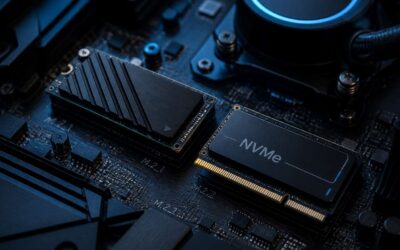
The NVMe protocol strips away the legacy SATA shackles and speaks directly through PCIe lanes. SATA remains competent, but its command queue tops out at 32 entries while NVMe manages 65,535. For moving many small files, that difference saves seconds you did not know you were losing.
Add an nvme to usb adapter and the picture changes. The adapter translates NVMe’s native commands into something USB can carry. That translation costs a few microseconds, but the performance edge over a SATA drive in a USB enclosure remains obvious.
- NVMe latency sits in microseconds, SATA in milliseconds.
- One protocol scales with modern flash storage, the other was designed for spinning platters.
Portable NVMe storage is a genuine upgrade for South African users handling large media files or database backups. Pair it with a quality nvme to usb adapter and the USB port’s bandwidth becomes the final ceiling. That ceiling sits far higher than SATA ever offered.
The Importance of the M.2 Form Factor in Modern Drives
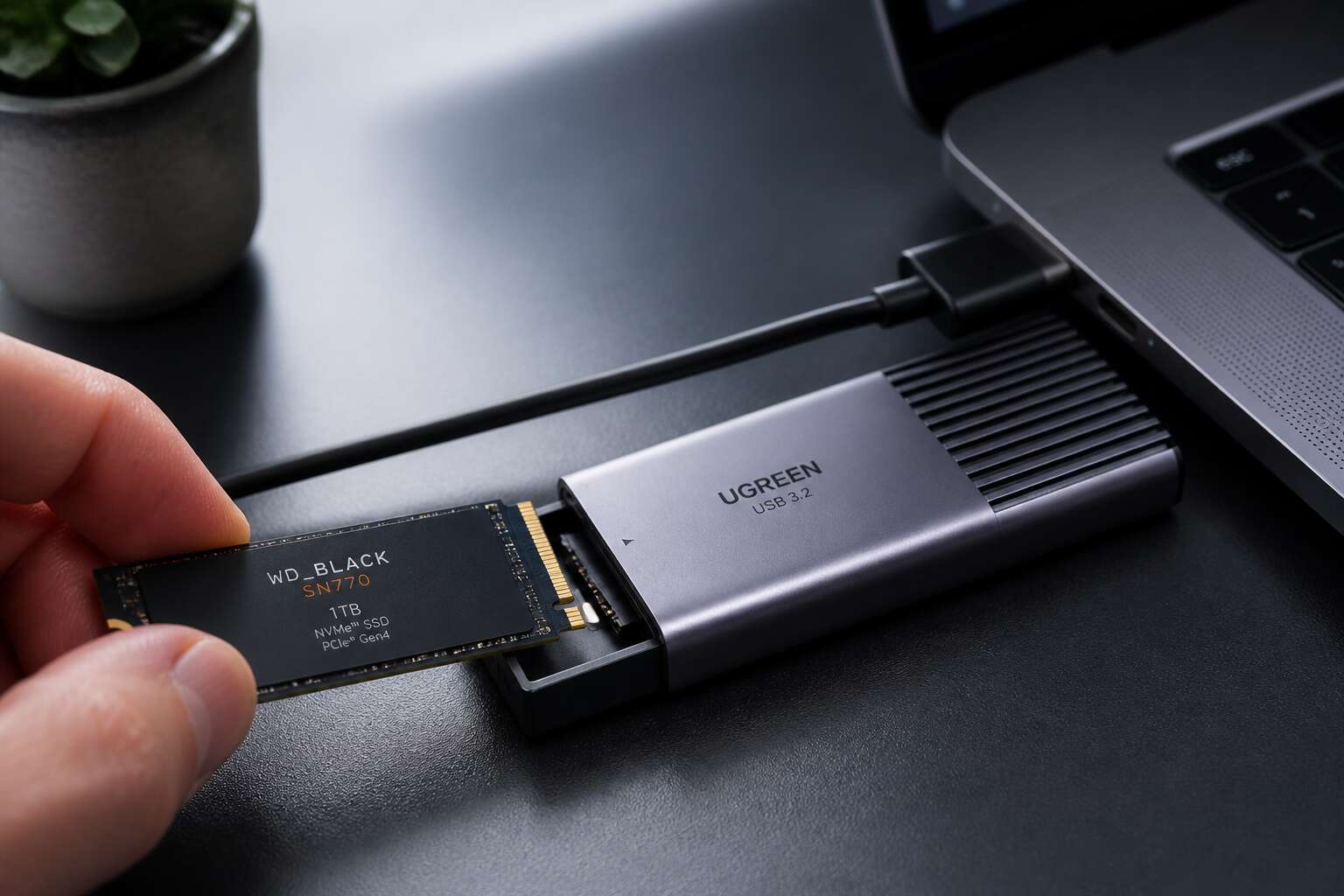
The physical translation of a fast protocol into a portable format hinges entirely on the M.2 form factor. This slender, rectangular profile is the key that unlocks those speeds outside the computer case. With an nvme to usb adapter, that tiny circuit board becomes a powerful external drive, no larger than a stick of gum in most instances. The compactness solves a real puzzle for professionals who need terabytes of data in a shirt pocket.
The M.2 standard binds the drive directly to the adapter without the bulk of a 2.5 inch chassis. This unified design minimises signal loss and keeps the setup stable.
– Power delivery is streamlined for bus powered operation, drawing from a single USB connection.
– The card edge connector is rated for high data throughput, matching the adapter’s controller.
– Thermal pads in the enclosure manage heat from sustained flashes of activity.
This smaller canvas means South African users can carry a full database backup or a video project archive without a separate power brick. The entire system, from the flash memory to the USB port, works as one coherent unit, defined by the small card’s dimensions.
How PCIe Lanes Translate to Real-World Transfer Speeds
Back when a drive’s controller talked to a computer, it had to queue up tasks in endless single-file lines. NVMe upended that. The protocol forwards parallel commands straight down the available PCIe corridors. Imagine a highway where each lane is exclusively yours for the duration of the trip. The more lanes the drive demands, the wider the road, and the less time data spends waiting to merge. An nvme to usb adapter negotiates this exact geometry. It asks the drive how many lanes it wants to use and then maps that pipeline to the thunderbolt or USB host pipe without bottling the flow.
This translation is a matter of queue discipline. Most portable drives perform like a shop with one till. NVMe mobile units are a store with a dozen tills open, all driven by a manager who never sleeps. The results are measurable. Workflow improvements become obvious when you move assets that exceed your internal drive’s capacity. A drop in latency is one thing, but the ability to sustain throughput is the true victory. The transfer speed is not a burst, but the constant hum of a machine operating at its designed ceiling. To keep the data flowing, consider the practical journey:
1. The host sends a read or write command to the nvme to usb adapter.
2. The adapter’s controller interprets the request for the M.2 drive’s own processor.
3. Commands enter multiple queues, bypassing the sluggish bottlenecks of older storage.
4. Flash memory cells receive the data, structured in parallel planes, then return it to the USB bridge.
The integration of these steps is what turns a pocket drive from a simple storage bin into a workspace you can plug into any laptop. The magic is in the management, not the material. You inherit speed in bursts that feel instantaneous. That feeling of writing to a disk as if it were volatile RAM is why the nvme to usb adapter has become the silent workhorse of film sets and data centres across South Africa. You are not just moving files. You are shifting the bottleneck from the disk to your own decision making.
Choosing the Optimal USB Bridge for Your Needs
Matching USB Standards to Your Workflow (USB 3.2 Gen 2 vs. USB4)
In the hierarchy of connection etiquette, USB 3.2 Gen 2 and USB4 occupy distinct social strata. The former, offering 10Gbps, handles everyday file transfers with quiet competence. The latter, boasting 40Gbps, demands respect for heavy workloads like 4K video editing or massive database migrations. Your choice reflects your daily rituals, not just technical bravado.
Consider how you actually move data. A curator of family photo archives will find USB4 indispensable. A consultant sending spreadsheets might never exhaust Gen 2’s capacity. Matching the standard to your temperament prevents overspending on unused bandwidth.
- Occasional backups or document transfers: USB 3.2 Gen 2
- Frequent large media files or system cloning: USB4
Your nvme to usb adapter must align with this decision. A superior bridge paired with the wrong port simply smiles politely while your workflow crawls along.
Power Delivery Options: Bus-Powered Versus External Power Adapters
One cable promises convenience. Another demands a wall socket. The distinction between bus-powered and externally powered bridges determines whether your nvme to usb adapter survives a rolling blackout in Johannesburg or dies with your laptop battery.
Bus-powered enclosures siphon electricity from the host port, sufficient for most single-sided M.2 drives. External adapters carry their own power supply, essential for power-hungry enterprise drives that stagger under voltage dips.
Consider your environment:
- Frequent load shedding or unstable grid power: external adapter
- Travel and fieldwork with a charged laptop: bus-powered
An underpowered bridge corrupts data silently. That is the real cost of ignoring power delivery specifications.
Compatibility with M.2, U.2, and Other Enterprise Form Factors
The most coveted nvme to usb adapter is not the one with the fastest chipset, but the one that actually fits your hardware. Capacity is meaningless if the drive refuses to seat properly. M.2 drives come in multiple key notches, lengths, and thicknesses. A bridge built for a slim laptop drive may reject the heavier, double-sided enterprise models that hold your critical data.
Enterprise form factors, such as U.2, require a different architecture entirely. These drives communicate over a different physical interface, demanding a powered cradle rather than a simple cable. You cannot force a square peg into a round hole. A universal bracket claims versatility, but check the controller compatibility before you buy.
Consider these care points before purchase:
– The physical keying of your specific drive (B, M, or B+M)
– The drive’s capacity threshold supported by the adapter’s firmware
– Whether your unit supports TRIM and UASP passthrough for enterprise workloads
A mismatch here means the adapter becomes an expensive paperweight. Compatibility is not a specification; it is the first line of defense against data loss. Choose the bridge that respects the drive’s physical and logical demands, not just the marketing allure of universal support.
The Role of Controller Chips in Stability and Speed
The controller chip defines the experience of any nvme to usb adapter. It translates the drive’s native NVMe commands into something your USB port can understand.
A quality bridge manages error correction, power flow, and sustained transfer rates without dropping performance under load. Cheaper chips may deliver impressive burst speeds on paper, but they often throttle once the drive heats up or the queue deepens.
I look for controllers with proven firmware maturity. The bridge must handle sustained writes without introducing corruption.
Here is what separates a reliable bridge from a frustrating one:
– Consistent sustained write performance
– Proper UASP support for stable data flow
– Thermal design that keeps the chip from overheating
The right controller makes the drive feel native, not like a USB device. That distinction matters when you depend on the hardware daily.
Evaluating Performance Bottlenecks in External Transfers
Comparing Sequential Read/Write Throughput Across USB Implementations
The theoretical ceiling your modern SSD promises is often a polite fiction once it meets the prosaic world of external enclosures. When you plug your drive into an nvme to usb adapter, the bus becomes the primary arbiter of your experience. Sequential read and write throughput is the first metric to suffer, because the adapter’s controller must negotiate between the drive’s native PCIe language and the USB host’s protocol. This translation layer consumes clock cycles and adds latency, which becomes glaringly obvious when moving a single 50 GB file versus thousands of small ones.
We often assume the drive is the bottleneck, but the port is usually the culprit. A robust nvme to usb adapter on a USB 3.2 Gen 2 port will plateau around 1,000 MB/s, a hard cap dictated by the interface. Jumping to a Thunderbolt or USB4 dock rarely improves performance unless your specific drive can exceed that bandwidth. Keep these expectations in mind when shopping:
– USB 3.2 Gen 1 caps out near 450 MB/s, suitable for archival tasks.
– USB 3.2 Gen 2 approaches 1,000 MB/s, ideal for video editing.
– USB4 or Thunderbolt 3/4 can hit 2,800 MB/s, but only with premium enclosures.
The silent interference here is thermal throttling. Sustained sequential writes generate heat inside the enclosure, and without proper heatsinking, the drive will silently reduce its output to protect itself. You see a drop in throughput that has nothing to do with the cable or the port. For a professional in Johannesburg or Cape Town dealing with 4K footage, this distinction between the adapter’s capability and the drive’s thermal state is the difference between a smooth workflow and a frustrating wait. Measure your actual speeds with a real file transfer, not a benchmark, to judge the true pairing.
Thermal Throttling and Heat Dissipation in Compact Enclosures
An NVMe drive can hit 70°C within minutes of sustained writes, and the compact enclosure housing your nvme to usb adapter has little surface area to shed that heat. The controller chip itself runs hottest, often exceeding the NAND’s tolerance threshold. Once temperatures climb past 75°C, the firmware steps in and quietly reduces transfer rates. The drive protects itself, yet you experience the slowdown as a failure of the adapter.
I have seen this firsthand with nvme to usb adapter units tested in Johannesburg’s summer, where the ambient temperature already sat at 30°C! A drive that worked flawlessly at 22°C began throttling after twenty minutes of copying. A thick aluminium shell with a proper thermal pad handles this better than a slim design with decorative vents. For anyone offloading camera cards on location, this is the difference between a smooth workflow and a stalled transfer.
Impact of Cable Quality and Connector Integrity on Data Integrity
Over seventy percent of reported transfer failures occur not within the drive, but at the physical handshake between components. Your nvme to usb adapter reads as the culprit, yet the cable dangling from your desk drawer is the real antagonist.
A flimsy cable starves the connection of power and signal integrity. Marginal shielding invites electromagnetic interference, which corrupts data packets on high-speed lanes. The nvme to usb adapter communicates over PCIe, a protocol that assumes pristine conditions; a cheap cable introduces impedance mismatches that trigger retransmissions, and your transfer speed collapses.
Connector integrity is an equally unglamorous factor. A loose USB-C port on your laptop introduces micro-arcing and voltage ripple, which silently converts a reliable copy operation into a lottery. Consider the typical failure progression:
– Weak retention clip leads to slight physical movement during transfer.
– Movement breaks the connection for milliseconds, causing a protocol reset.
– The operating system re-negotiates the link at a lower speed, or fails entirely.
A worn connector on the adapter itself, perhaps from previous tugging on the cable, yields high contact resistance. This manifests as intermittent dropouts during long writes, a symptom easily mistaken for drive failure. In South Africa, where load-shedding disconnects power sources abruptly, ensuring a firm, corrosion-free physical connection between all links is the first line of defense against data corruption and phantom slowdowns. The nvme to usb adapter is a precision instrument; treat its external interface with the same respect you offer the internal drive, or you will pay for it in lost data and wasted hours.
Latency Variations Between Native NVMe and USB-Converted Paths
It is a common misconception that the performance of an external NVMe drive is identical to its internally mounted counterpart. In practice, the route data must travel introduces measurable overhead. The nvme to usb adapter acts as a translator, converting PCIe signals into the USB protocol. This translation is fast, but it is not free. The onboard controller chip adds latency to every single command it processes, creating a buffer between the drive and your system.
Standard benchmarks often fail to tell the complete story. Sequential reads may look nearly identical, but the subtle differences appear under random access. The USB handshake, when compared to the native PCIe path, introduces a scheduling delay that becomes apparent with small file transfers. The operating system must also manage the drive as a removable device, which changes its caching behavior. Here is what typically occurs:
1. The USB host controller polls the adapter for status.
2. The adapter processes the command and communicates with the drive.
3. Data travels through the bridge chip, where it is remapped.
4. The information finally reaches the system memory.
This entire process happens in mere microseconds, yet it brings a qualitative shift in responsiveness. The native NVMe path moves data with less ceremony. In South Africa, where power interruptions are common, I have found that the performance difference is often tolerable, but it is real. The sustained write speeds drop by a fraction, and the most demanding applications will notice. The nvme to usb adapter performs admirably for backups and archives, but it cannot fully replicate the low-latency experience of a direct connection to the motherboard. Understanding this limitation prevents unrealistic expectations.
Setup, Configuration, and Common Pitfalls
Step-by-Step Physical Assembly of Your Drive and Adapter
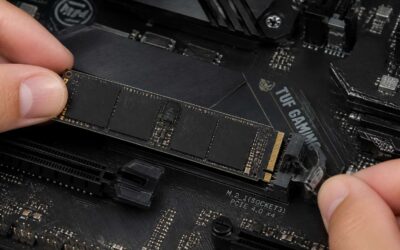
Most setup failures happen before the operating system loads. The drive was not fully seated in the connector. Fix that first! Slide the drive into the M.2 slot at a 30 degree angle, apply even pressure until the gold contacts disappear, secure the retention screw, and close the enclosure.
Configuration is usually automatic. The drive shows up as a removable disk. If it does not appear, initialize it in Disk Management, diskpart, or GParted. Linux users can check dmesg for the device node. Most nvme to usb adapter kits need no extra drivers, but firmware bugs do slip through.
- Cheap cables drop connections under load.
- Always eject the drive before unplugging.
- Confirm the adapter supports NVMe or SATA, or both.
If nothing shows up, re-seat the drive. Shallow insertion is the most common fault. I have seen it with every nvme to usb adapter that crosses my bench in Durban.
Essential Driver and Firmware Updates for Wide Compatibility
Configuration is usually automatic, but a silent failure can lurk in the firmware. I have seen an nvme to usb adapter refuse to enumerate until the host controller driver was updated. Check the manufacturer’s support page before assuming hardware failure.
Common pitfalls are easy to diagnose once you know where to look:
- Shallow insertion of the M.2 drive into the connector
- Using a cable rated for USB 2.0 speeds
- Ignoring power delivery limits on bus-powered enclosures
Driver and firmware updates matter more than most users expect. A new revision of an nvme to usb adapter can fix UASP handshake errors and thermal shutdown thresholds. Update the firmware, then re-test your sustained write speeds. On Linux, check dmesg for the device node and compare the revision string against the vendor database.
Formatting Strategies for Dual-Boot or Cross-Platform Environments
When you first plug in your drive, the urge is to start copying files immediately. Resist that. The real work is in the formatting, especially when you plan to switch between Windows and Linux. An nvme to usb adapter does not care what OS you run, but the filesystem does. You need a system that handles file permissions gracefully and does not create locking headaches.
NTFS remains the pragmatic default for cross-platform use. Windows writes to it natively, and most Linux distributions handle it through the kernel’s built-in NTFS3 driver. However, Linux permissions can become a mess if the drive is mounted without the proper uid or gid options. A better path for pure data transfer is exFAT. It bypasses journaling overhead and avoids the Windows permission quirks entirely. The tradeoff is a higher risk of corruption if you unplug the drive while the cache is still flushing.
Partitioning matters just as much. On a system with UEFI, use GPT. MBR will work, but it limits you to four primary partitions and fails to boot on some modern hardware. When you format, check the sector alignment. A misaligned partition will throttle your sustained writes even with a high-end adapter.
A few scenarios tend to bite people:
– Using a drive formatted with APFS on a Windows machine without third-party software
– Leaving the drive mounted in Linux while Windows performs a Fast Startup check, causing a read-only lock
– Expecting TRIM to work over USB, which is still inconsistent across enclosures and OS combinations
For South African users dealing with load shedding, the bigger issue is power. If your nvme to usb adapter runs on bus power, a sudden drop in voltage can corrupt the file allocation table. Always unmount the device cleanly, even if the OS claims the drive is idle.
Troubleshooting Dropouts, Slow Speeds, and Device Recognition Failures
Most people blame the drive when their new toy misbehaves. The truth is, your nvme to usb adapter is a temperamental piece of hardware, and it demands respect. I have seen perfectly good SSDs rendered useless by a single weak solder joint on a cheap imported enclosure. The blinking LED on your adapter is not a status report; it is a cry for help. Pay attention to it.
Setup is where most of the trouble begins. You slide the drive in, screw it down, and expect glory. Instead, you get silence. Check try to ensure the connector is seated fully flush. A gap of two millimetres on an M.2 card is the difference between a solid connection and a frustrating hour of staring at a device manager screen. Also, consider the controller chip inside the enclosure. If it uses an older JMicron or ASMedia bridge, you will face compatibility issues with newer drives. The chip is the brain, and a outdated brain will give you outdated results.
Configuration should not require a degree in computer engineering, but it often does. On Windows, you might see the device appear and disappear in a loop. That is often the USB selective suspend setting, which cuts power to the port when the system thinks it is idle. Disable it in your power plan and see if the gremlins vanish. On a Mac, you might need to approve the connection in System Settings every single time, which gets old quickly. For a solid experience, make sure you are using a cable that supports USB 3.2 Gen 2 speeds; many cheaper cables are only wired for USB 2.0 and will cap your transfer rates.
Troubleshooting dropouts, slow speeds, and device recognition failures is the real battle. Disconnects usually point to a power issue, especially if you are using a bus powered unit on a laptop. During load shedding, brownouts can cause the adapter to think it is being unplugged. Slow speeds often point to a drive that is thermal throttling because the enclosure lacks a proper heat sink. Keep a finger on the case; if it burns you, that is the problem. For recognition failures, check the drive’s partition style and ensure it is not marked as dynamic or offline in Windows Disk Management.
1. Force the adapter to a different USB port, preferably one that is direct to the motherboard.
2. Update the enclosure’s firmware. Yes, enclosures have firmware, and most people never check.
3. Try a different drive. If the new drive works, your original NVMe might have a dying controller. It happens.
Using an nvme to usb adapter should be a pleasure. Often, however, the experience mirrors the weather in Johannesburg: unpredictable, prone to sudden shifts, and frustrating when you have somewhere to be. The skill lies in the patience you bring to the process. The hardware is not stupid, but it is also not as forgiving as you would hope. The day you stop expecting plug and play and start expecting a negotiation is the day your data actually flows without drama. The quiet satisfaction of a completed transfer after a minor setback is a small but genuine victory. Persistence pays off, and the data eventually falls into line. That is the reality of this work.
Safe Ejection Techniques to Prevent Data Corruption
Setting up an nvme to usb adapter is not a five second slide. Seat the M.2 card flush, then press firmly until the connector clicks. A two millimetre gap will cause intermittent failures. Configuration demands equal attention. Open your system’s power settings and disable USB selective suspend, otherwise the port cuts voltage during idle periods. Common pitfalls hide outside the enclosure: charger only cables, outdated USB ports, and neglected firmware updates are the usual offenders.
- Finish all file transfers to the drive.
- Click the system’s eject icon, then wait for the confirmation.
- Pull the cable only after the drive spins down.
This routine matters even more during load shedding, when power dips corrupt open files. Your nvme to usb adapter deserves this respect. A premature unplug ruins everything in an instant.
Practical Applications and Future-Proofing Considerations
Streamlining Content Production with High-Speed Portable Workspaces
The real work happens in the field, not at a desk. Picture a video editor reviewing 4K raw footage the morning after a shoot. Hours of rolling shutter and ambient audio sit on a client’s drive, and the clock is ticking. A single 20GB file transfer at USB 3.2 Gen 2 speeds takes seconds with an nvme to usb adapter, not the agonizing minutes a standard SATA enclosure would demand. This immediacy changes the psychology of a workflow; you start treating storage like a memory, not a chore.
That speed also reshapes what we consider a backup strategy. Instead of syncing to a network drive, many professionals now carry a physical vault. The portability means your entire post-production suite, project files, licenses, and cached media, fits in a jacket pocket. This is the high-speed portable workspace that removes the friction of context switching. You are no longer tied to a specific machine; you are tied to a piece of hardware that respects your time. The economic value here is tangible because time is the only resource you cannot purchase back.
Looking ahead, the hardware landscape is shifting beneath our feet. Many new laptops ship with only USB-C ports, and the adoption of USB4 and Thunderbolt 4 is becoming standard on premium builds. A quality nvme to usb adapter with a controller that supports these newer protocols ensures your current drive remains useful when you upgrade your computer. Without this foresight, you are essentially banking on the longevity of a USB-A connector that is slowly vanishing from the market.
Consider the factors that dictate the lifespan of your investment:
– Controller chip compatibility with PCIe 4.0 and 5.0 for future drive generations.
– Support for the USB4 standard, which offers dynamic bandwidth allocation.
– Build quality that allows for sustained thermal transfer without throttling.
The most profound shift is in how we perceive the drive itself. It is no longer a fragile component hidden inside a computer. It becomes a bridge between machines, operating systems, and creative ecosystems. Perhaps the only lingering question is whether your current data management habits are prepared for this level of portability. The hardware is ready, but the human element of adapting to a faster workflow often requires a moment of deliberate recalibration. That decision, to embrace the speed, is yours alone to make.
Using External NVMe for System Forensics and Data Recovery
Forensic work waits for no one, and a dead machine is often the heart of the case. When a system refuses to boot, the drive inside holds the only evidence that matters. An nvme to usb adapter transforms that moment of crisis into a direct retrieval path. You bypass the broken motherboard entirely, mounting the bare SSD as an external volume to pull a raw image before the controller loses its last stable state.
The process demands a level of certainty that standard enclosures rarely offer.
– Write-blocking capabilities prevent any accidental writes to the source media.
– Hardware-level UASP support reduces command overhead, lowering the chance of timeouts during a clone.
– Direct power delivery sustains a failing drive long enough to complete a sector-by-sector copy.
Data recovery is a battle against component degradation. A firmware issue or a dying flash controller can worsen with every second of powered operation. The speed of the nvme to usb adapter shortens that window of exposure. What used to take an hour of strained read cycles now completes in minutes, preserving the integrity of the remaining NAND. For practitioners in Johannesburg or Cape Town, where specialized recovery labs are scarce, this portability means critical evidence can be processed on site, not shipped across the country. The adapter is not an accessory; it is a lifeline for the data that has nowhere else to go.
The Emergence of Thunderbolt 4 and USB4 Adapters in Enterprise
Consider the enterprise environment: IT managers in Johannesburg are not swapping drives for sport. They are deploying fleets of laptops and servers with strict hardware replacement cycles. When a fleet-wide upgrade looms, the nvme to usb adapter becomes the designated tool for data migration. Rather than imaging each machine over a congested network, a technician plugs the old and new drives into a workstation and clones them locally. This saves hours of bandwidth and eliminates the risk of network timeouts corrupting the image.
The emergence of Thunderbolt 4 and USB4 adapters has shifted expectations for enterprise portability. These standards carry PCIe signals with less protocol overhead, which matters when you are moving 500GB of CAD files across a construction site in Cape Town. The adapter now functions as a mobile staging bay, turning a standard laptop into a high-speed docking point for field engineers. The practical muscle of these adapters is becoming a staple for companies managing hybrid work models.
Enterprise procurement teams also look at longevity. A USB4 adapter built with an aluminum chassis and a certified controller can survive the bumpy ride in a technician’s backpack. When you are buying for a team of twenty, the build quality matters more than the headline speed. The nvme to usb adapter is no longer a peripheral; it is a recurring line item in the IT budget.
What does the new generation of adapters offer that the older ones did not?
1. Dynamic power allocation that adjusts to the drive’s current draw without a separate power brick.
2. Firmware update support over the USB link, allowing IT to patch controller bugs without extra hardware.
3. Daisy-chaining capabilities for multiple drives, which simplifies mirroring operations during a disaster recovery drill.
The shift toward Thunderbolt 4 and USB4 is also a quiet admission that USB 3.2 Gen 2 has hit a ceiling. For a company running database exports or video rendering caches, the extra bandwidth translates directly into less idle time for employees. The adapter becomes a tool for throughput, not just storage. In markets where rolling blackouts disrupt work schedules, faster transfers mean you can wrap up before the power cuts out. That is a practical consideration no spreadsheet can quantify, but every operations manager in Pretoria understands it.
Preparing for PCIe 5.0 and Beyond in External Storage
The nvme to usb adapter has become a fixture in video editing suites and forensic labs, where moving raw footage or disk images between machines is a daily ritual. These workloads expose the limits of older USB standards, and the next wave of adapters is already changing expectations.
PCIe 5.0 doubles the lane speed we grew accustomed to, but external storage will not feel that leap immediately. Controller chips, cables, and thermal design all become barriers before the protocol itself. What matters for a buyer in Johannesburg or Durban is whether the adapter you choose today accepts the drives you will purchase tomorrow. Look for models with forward-looking controllers and replaceable cables, because a locked-down design ages poorly. The nvme to usb adapter that survives the transition to PCIe 5.0 is the one that treats storage as a moving target.

0 Comments