Understanding the Two Foundational Technologies
What the M.2 Form Factor Actually Defines
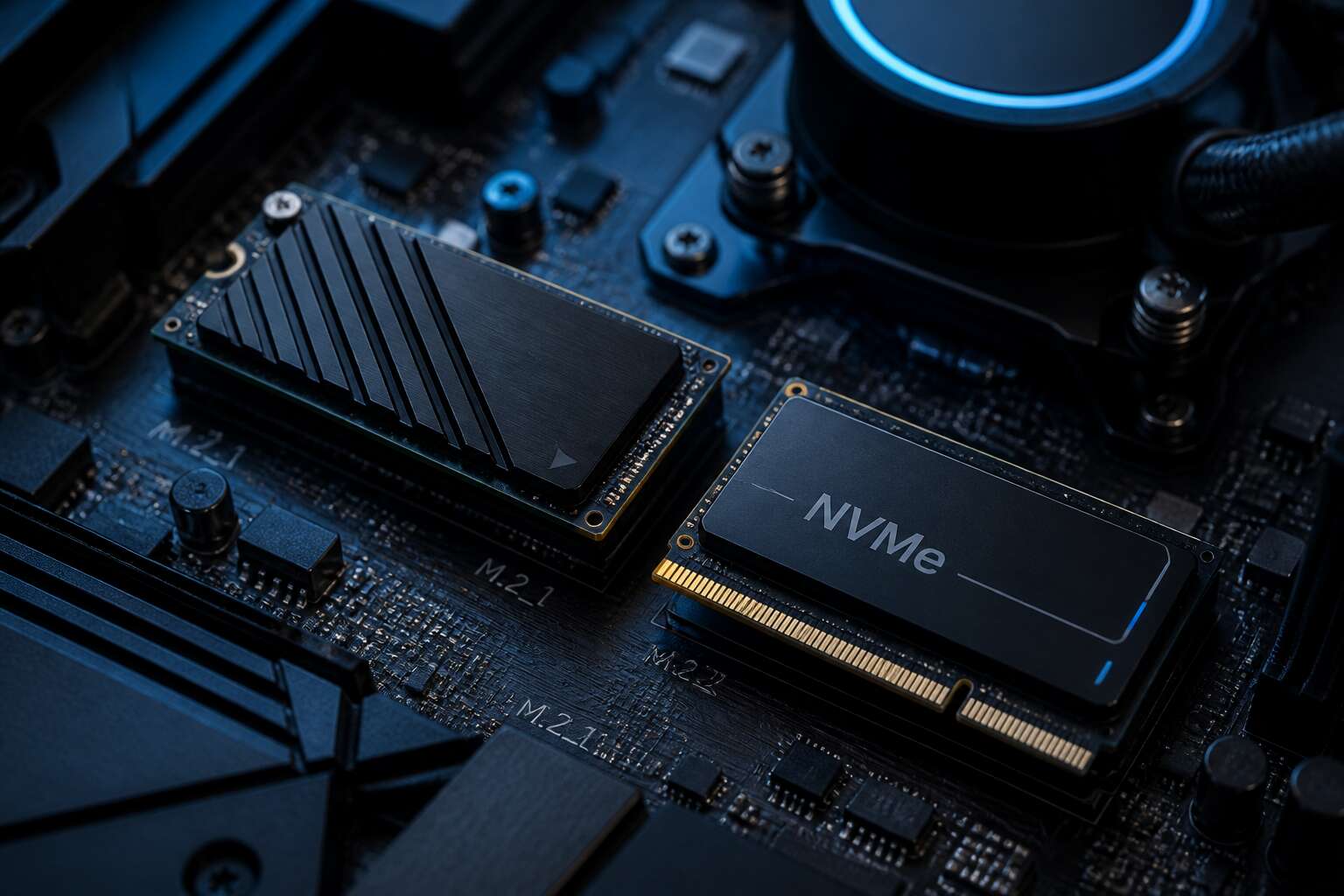
Ask anyone why their new laptop feels snappy, and they might say it has an M.2 SSD. The real answer lies in the protocol underneath. You cannot untangle the nvme vs m.2 speed debate without first separating the physical slot from the language it speaks. M.2 is merely the connector, a small circuit board that plugs into the motherboard. It does not dictate velocity on its own.
I have seen countless users mistake the shape for the engine. The M.2 form factor happens to support both SATA and NVMe drives, so the socket itself tells you nothing official about raw throughput. It defines length and keying, not packet rates. When you slide the card in, the interface negotiation begins, and that is where the comparison actually starts.
- M.2 is a compact card standard for internal storage.
- It replaces the bulky 2.5 inch bay and cables.
- The slot can carry either legacy SATA signals or modern PCI Express lanes.
The physical change is profound for laptop builders and desktop tinkerers alike. A crowded motherboard with cable spaghetti gives way to a clean, single screw mount. But none of that physical elegance improves performance. You could install a SATA M.2 drive and still hover around 550 megabytes per second, while an NVMe drive on the same slot laughs at that ceiling.
Understanding the distinction clarifies why retailers bundle the two terms together. The marketing collapses the slot and the protocol into one phrase, which obscures the engineering reality. The nvme vs m.2 speed question only becomes clear when you recognize that M.2 is the doorway, and NVMe is the vehicle that flies through it.
The NVMe Protocol and Its Purpose
The NVMe protocol was built to remove a specific bottleneck. Older storage interfaces relied on a single command queue, which became a serious limitation under heavy workload. NVMe instead opens thousands of parallel queues, each carrying up to 64K commands. That architectural shift is the true engine behind the nvme vs m.2 speed discussion.
Consider what this means for a system under strain:
- Multiple applications can read and write simultaneously without waiting in line.
- Latency drops from milliseconds to microseconds.
- The drive operates closer to the physical limits of the NAND flash itself.
The protocol’s purpose is not to make the connector faster. It exists to let the storage device use the PCI Express lanes at full capacity, delivering a quiet and relentless efficiency that changes how a machine handles data.
Clearing Up the Most Frequent Product Confusion
Walk into any computer store in Johannesburg and you will see M.2 drives stacked in rows. Most buyers assume the shape determines the speed. It does not.
M.2 describes the physical card, the small rectangle that clicks into the motherboard. NVMe describes the protocol, the set of rules that moves data across PCIe lanes. The nvme vs m.2 speed question collapses into this single distinction.
Here is what most people miss:
- A SATA M.2 drive tops out around 550 MB/s.
- An NVMe M.2 drive can exceed 3,000 MB/s.
- Both look identical!
The slot accepts both. The motherboard decides which language it speaks. So when you compare nvme vs m.2 speed, you are not comparing two rivals. You are comparing a physical shape to a data protocol.
Measuring Performance: Throughput, IOPS, and Latency
Sequential Read/Write Speeds in Theory
Numbers tell a story, but only if you know how to read them. When vendors quote nvme vs m.2 speed, they usually point to sequential read and write speeds. Those figures represent the theoretical best case: data written in large, contiguous blocks, with no interruptions. Real workloads rarely behave that way.
Throughput measures megabytes per second. IOPS counts input/output operations per second. Latency, measured in milliseconds, captures the delay before each operation completes. Each metric answers a different question:
- Throughput suits large file transfers.
- IOPS matters for small, random operations.
- Latency affects how responsive a system feels.
In theory, sequential speeds look impressive. In practice, the controller, NAND flash, and driver overhead set the true ceiling. The nvme vs m.2 speed conversation becomes clearer when you separate marketing numbers from measured behavior.
Random Access and 4K IOPS Benchmarks
Random access performance tells a different story than sequential throughput. While sequential benchmarks measure large contiguous transfers, 4K IOPS benchmarks hammer the drive with small, scattered read and write requests. These operations mimic how operating systems actually load files, launch applications, and access databases.
Throughput measures megabytes per second, but IOPS counts operations per second, and latency captures the delay before each operation completes. In nvme vs m.2 speed comparisons, 4K random benchmarks expose the controller’s intelligence, the NAND’s responsiveness, and the firmware’s scheduling efficiency. A drive that posts impressive sequential numbers can stumble badly under random load. Here is what these benchmarks reveal:
- Queue depth scaling: how the drive handles multiple outstanding requests
- Mixed read/write penalties: how quickly the controller switches directions
- Consistency under sustained load: whether performance degrades over time
These metrics matter more than peak figures for everyday responsiveness, and they often settle the nvme vs m.2 speed argument in practice.
Latency Differences Between Interface Generations
Latency is where the nvme vs m.2 speed debate actually gets interesting. Sequential numbers make for great marketing slides, but the delay before a single byte arrives is what your software feels every single millisecond. NVMe over PCIe cuts that wait to the microsecond range, while older AHCI over SATA still suffers from protocol overhead that predates modern flash memory.
The interface generation matters as much as the protocol. PCIe 3.0 delivered roughly one microsecond of latency. PCIe 4.0 shaved that further. PCIe 5.0 pushes the floor lower still. Each generation narrows the gap between the controller’s request and the NAND’s response, which changes the practical nvme vs m.2 speed comparison.
- Lower latency means snappier application launches
- Lower latency means smoother database queries
- Lower latency means less time staring at progress spinners
When you measure nvme vs m.2 speed properly, you stop obsessing over gigabytes per second and start respecting the microseconds. That is where the real user experience lives.
PCIe Gen3 vs Gen4 vs Gen5 Bandwidth Limits
Theoretical throughput numbers only tell part of the story when measuring nvme vs m.2 speed. Each PCIe generation doubles the available bandwidth, which sets the absolute ceiling for what a drive can physically deliver.
PCIe Gen3 offers roughly 3.5 GB/s per lane direction. Gen4 doubles that to about 7 GB/s, and Gen5 pushes past 14 GB/s. These limits are not marketing embellishments; they are hard engineering constraints.
- Gen3 peaks around 3.5 GB/s
- Gen4 reaches approximately 7 GB/s
- Gen5 approaches 14 GB/s
A Gen4 drive sitting in a Gen3 slot will simply throttle down to the slower standard. The real world performance lives in the interaction between the controller, the NAND, and the available lane speed.
Real-World File Transfer Scenarios vs Synthetic Tests
Benchmarks rarely reflect how a drive behaves in daily life. Synthetic tests measure the absolute limits of nvme vs m.2 speed under controlled conditions, often using high queue depths that ordinary users never reach. Real-world file transfers, however, depend on mixed workloads, file sizes, and the system’s ability to process requests efficiently.
When comparing drives, look beyond the sequential numbers. These metrics matter most:
– 4K random read IOPS for application loading
– Mixed read/write performance under sustained load
– Power consumption during idle states
A drive that excels in benchmarks may still feel sluggish when copying thousands of small files or handling video editing timelines. Latency, rather than raw throughput, often defines perceived responsiveness. South African users dealing with load shedding interruptions should also consider power loss protection, which enhances data integrity during unexpected shutdowns. The true comparison of nvme vs m.2 speed happens in your specific workflow.
Why Your Drive’s Speed Might Not Match Specifications
Controller Quality and NAND Flash Type
A 4TB drive’s sticker is a lie, but not in the way you think. The advertised nvme vs m.2 speed comparisons often ignore the controller and the NAND flash type. The controller is the drive’s brain, managing error correction, wear leveling, and data routing. A superior controller can make a modest NAND setup perform admirably. Conversely, a budget controller can bottleneck high-speed flash, capping potential throughput.
NAND flash comes in several architectures, with TLC and QLC being common in consumer drives. QLC stores more bits per cell, reducing cost but increasing write latency. This affects sustained write performance and endurance. You see high sequential numbers in benchmarks, but real-world file transfers often expose the controller’s ability to handle garbage collection. Consider these variables:
– The number of channels connecting the controller to the NAND.
– The quality of the NAND die itself, which impacts speed and voltage stability.
– The DRAM cache, if present, which speeds up mapping table access.
Without this context, any nvme vs m.2 speed statistic is arbitrary. The thermal throttling from a hot controller will also erase the theoretical gains of a Gen4 interface. The human factor is perception. Most users will not notice the difference between 500 MB/s and 7,000 MB/s on a boot drive. The drive’s efficiency under sustained load, its power consumption, and the silent degradation of its cells matter more. The spec sheet is a blueprint, not a guarantee of lived experience.
Thermal Throttling Under Sustained Loads
The number on the box is a promise made in a cool room. In your machine, inside a laptop or under a desk in Johannesburg, the temperature tells a different story. When a controller sustains heavy writes, it generates heat. The firmware steps in and reduces speed to protect the silicon. This is throttling. It is not a defect.
The nvme vs m.2 speed comparison in a benchmark is measured over seconds. A real transfer lasts minutes. Once the temperature crosses the threshold, the drive adjusts itself.
Common triggers include:
– Compact motherboards with poor airflow
– Laptops with minimal cooling
– Drives stacked against each other
Thermal throttling is the reason a 7,000 MB/s drive feels like a 1,000 MB/s drive under a long export. The spec sheet never mentions the room you are in.
Chipset Lane Sharing and System Bottlenecks
One undeniable factor in the nvme vs m.2 speed discussion is the behavior of the chipset. The drive is a prisoner to the pathways around it. If your central processor does not have enough spare lanes for the SSD, the connection routes through the chipset. That detour adds latency and places a hard ceiling on throughput.
The highway gets congested. A single PCIe Gen4 slot might offer 16 lanes, but those lanes are often shared. A graphics card, a second M.2 slot, and a USB controller can all be tapping the same downstream bandwidth.
Common shared-data bottlenecks include:
1. A main GPU pulling data over the chipset.
2. Multiple M.2 drives fighting for allocation.
3. Integrated SATA and USB devices siphoning available cycles.
When the system juggles these requests, the interface drops from a full x4 connection to a slower x2 link. The result is a drive that never sees its rated potential. Motherboard documentation lists the discrete specs, but real-world figures depend on peer devices. This is why your drive’s speed might not match specifications, a symptom of architecture rather than a faulty component.
The bigger the system, the more complex the routing. An upgrade to a newer processor does not automatically solve this; the motherboard tier dictates the lane budget. A budget board sacrifices expansion for cost. A high-end board allocates more direct CPU lanes, but that investment is invisible in a spec sheet. As the ecosystem grows, so does the intricacy of the connection. The question of nvme vs m.2 speed nearly always boils down to the silicon that sits between the storage and the processor.
The Role of SLC Caching and HMB
The numbers on the box tell a partial story. In the nvme vs m.2 speed conversation, sustained performance matters as much as peak performance. SLC caching is the first reason. A drive writes incoming data to a fast pseudo-single-level-cell buffer, then flushes it to slower NAND. Once that buffer fills, heavy transfers drop to raw NAND speed, and that drop is entirely normal.
HMB complicates things further. DRAM-less drives borrow a small portion of system memory to hold their mapping tables. This works well in light use, but it depends on what the host CPU and chipset are doing at that moment. When the system is busy, the borrowed memory can stall. A drive that cruised through benchmarks may suddenly underperform during continuous writes. The component is not faulty. The working conditions simply changed.
Matching Drive Architecture to Your Real-World Need
Gamers and General Productivity Users
Most gamers and productivity users overestimate time spent waiting on storage. A game loads into RAM once, then you play. A document opens, then you edit. The perceived slowness is often not the drive at all.
This is where the nvme vs m.2 speed debate stops being useful. When your workload never saturates even Gen3 bandwidth, controller quality and NAND flash type dictate real-world responsiveness more than raw sequential numbers. Your Gen4 drive sits mostly idle.
Consider where your minutes actually go:
- Waiting for a 50 GB game to load: 15 seconds on Gen3, 10 on Gen4
- Boot time: a 2 second difference you forget by the time your coffee is poured
- Transferring 5 GB of footage: done before you check your phone
An honest look at nvme vs m.2 speed for your daily pattern confirms what you already suspect. Your time is spent in menus, not in loading screens.
Content Creators and Video Editors on a Tight Schedule
An editor cutting 4K footage will move a terabyte of data before lunch. The nvme vs m.2 speed question takes a different shape when your timeline depends on repeated reads from proxy files and source clips. A Gen3 drive sustains the workload, but the margin appears when you scrub through a long timeline or export a finished sequence.
For a tight schedule, priority shifts from peak sequential numbers to steady behavior under mixed loads. Your day involves:
- Importing 200 GB of rushes from a card
- Scrubbing through multicam timelines
- Rendering previews while you edit
Each task stresses a different part of the drive. The speed gap matters less than choosing a drive that serves the operating system, the editing software, and the source footage all at once. That, I can tell you, is where minutes disappear.
Small Business Servers and Constant Write Workloads
Small business servers face an entirely different pressure than an editor’s workstation. Where the content creator needs bursts, the server needs endurance. Constant write workloads, such as database transaction logs and nightly backups, hammer the drive without rest. This is where the nvme vs m.2 speed debate shifts toward sustained write behavior and thermal stability. A consumer drive in that M.2 slot will announce itself with a fast SLC cache, then slow dramatically once the cache fills. The server does not care about your first minute of speed.
– Continuous telemetry ingestion
– Virtual machine snapshots
– Customer order processing
It cares about hour three. Matching the drive architecture to the workload is the difference between a silent afternoon and a stalled queue.
Laptop Upgrades and Heat Management Constraints
Here is the thing about laptop upgrades: the nvme vs m.2 speed debate changes when the drive lives inside a machine with zero airflow. Desktop users bolt on heatsinks. Laptop users get a thin metal shield that barely does the job.
The real challenge is power draw. A dual-boot setup with a hot PCIe Gen4 drive will heat up your palm, drain the battery faster, and force the controller to slow down. A single-sided drive with lower power consumption often beats a flagship double-sided model. Physical clearance matters too, since many laptops reject double-sided NAND entirely. Some laptops do not support DRAM drives properly, which makes HMB reliance more significant.
Some drives do not belong in laptops:
- Double-sided NAND models that collide with the chassis
- Gen5 controllers that produce more heat than your CPU
- High endurance enterprise drives aimed at servers
The laptop determines the drive, not the other way around. That is the nvme vs m.2 speed reality for a laptop owner.
Motherboard Compatibility and Physical Size Variations
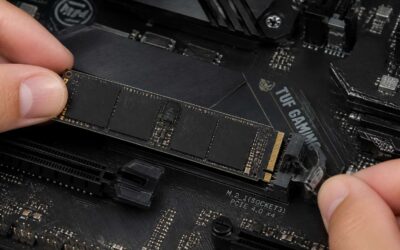
Most M.2 slots look identical but behave very differently. The nvme vs m.2 speed argument rarely accounts for the motherboard underneath, yet that board decides everything. A key mismatch or a shorter slot renders the fastest drive useless before installation.
Physical size variations follow strict naming conventions. The 2280 length dominates desktop boards, while 2230 drives appear in modern handhelds. The mount hole determines what you can actually secure.
- Confirm the key configuration, B or M
- Check the available slot length on the board
- Verify the PCIe generation supported by that specific slot
Matching drive architecture to your real-world need means accepting these constraints. The nvme vs m.2 speed comparison only matters once the drive physically works in your system.
Price-to-Performance Ratios Across Different Tiers
Here is where the nvme vs m.2 speed debate collapses into a practical question: what are you actually paying for? Entry level PCIe Gen3 drives still handle everyday boot and application loads without complaint. Their prices have dropped enough that upgrading from a SATA SSD costs less than a night out in Johannesburg. Mid tier Gen4 drives double the sequential throughput, but you only notice that when moving large media files. I have watched buyers overspend on Gen5 units for machines that never leave the desktop. Those top tier drives carry steep premiums for numbers that most workloads never touch.
Price to performance shifts sharply across these tiers:
- Gen3 budget drives deliver the most value per rand for basic use
- Gen4 mid range drives justify their cost for heavy file transfers
- Gen5 flagship drives demand a premium that only specialised workflows can absorb
The nvme vs m.2 speed conversation becomes practical once you map these tiers against your real usage patterns.
Looking Beyond the Basics: Future Trends and Common Pitfalls
The Fallacy That Every M.2 Drive Is Equally Fast
It is a common assumption that any M.2 drive will deliver identical performance. The reality is that vast chasms exist between the slowest SATA-based M.2 modules and the fastest PCIe Gen5 flagships. This performance delta can exceed 500 percent, which makes the physical shape a poor indicator of actual capability. When you buy based on the connector alone, you are leaving substantial speed on the table, or potentially wasting money on bandwidth your system cannot use.
The confusion persists because manufacturers plaster the M.2 label across every tier of product. Newer models often introduce new wrinkles with features like DRAM-less designs or adaptive thermal throttling that adjust performance on the fly. To complicate matters further, future generations of NAND are pushing the sequential transfer rates to new heights, but only on certain controllers. The nvme vs m.2 speed debate is effectively a lens through which we observe the broader evolution of storage technology.
Here are the hidden performance factors that often escape the spec sheet glance:
– The number of PCIe lanes allocated, which can be four or sometimes just two on budget boards
– The generation of the controller, which determines how efficiently the flash memory is managed
– The specific NAND type, as TLC and QLC have vastly different endurance and sustained write speeds
– The presence or absence of a physical heatsink in your chassis setup
– The firmware’s garbage collection algorithm, which impacts long-term consistency
As systems move toward PCIe Gen5 and beyond, the gap between the best and worst M.2 drives will only widen. Those who ignore the technical details today might find their “fast” storage becoming the system bottleneck tomorrow. The drive you pick for your build needs to match your workflow, not just your motherboard’s available slots. Pay attention to the actual specifications instead of the marketing stickers, because the architecture beneath the label determines everything.
SATA-based M.2 Drives and Where They Still Make Sense
Future storage trends point to PCIe Gen5 controllers and faster NAND, yet SATA based M.2 drives linger in older laptops and budget desktops where no second NVMe slot exists. The nvme vs m.2 speed debate confuses buyers who assume every M.2 module follows the same protocol. A SATA M.2 drive behaves like a 2.5 inch SSD, just in a smaller wrapper.
- Legacy business machines with locked BIOS settings
- Network attached storage units short on PCIe lanes
- Media archives where sequential speed matters less
The common pitfall arrives when someone installs a SATA drive into a modern system capable of NVMe. The connector hides the interface, so the label must be read carefully. As Gen5 becomes standard, the performance gap will widen. SATA M.2 still suits a stopgap role, but longevity is not its strength.
Operating System DirectStorage and Other Software Gains
Microsoft introduced DirectStorage with Windows 11, and it finally removes the CPU from the game-loading pipeline. The result is a shift in how the nvme vs m.2 speed debate plays out in real use. Software now determines whether a Gen4 drive outperforms a Gen5 drive, depending on how the operating system and game engine handle queue depth. The drive’s firmware, controller, and NAND type still matter, but the bottleneck moves to software compatibility.
In my experience, common pitfalls appear when buyers ignore the full chain. Consider what gets overlooked:
- The motherboard’s PCIe lane assignment, which can drop a Gen5 drive to Gen3 speeds.
- The absence of Resizable BAR support on older chipsets, which limits GPU access to compressed assets.
- A Windows build that predates DirectStorage, leaving the API unused.
This is the quiet failure mode of modern storage. The drive is fast, but the software stack never lets it show!

0 Comments