Understanding the NVMe Interface and Its Physical Dependency
The Core Role of PCIe Lanes in NVMe Functionality
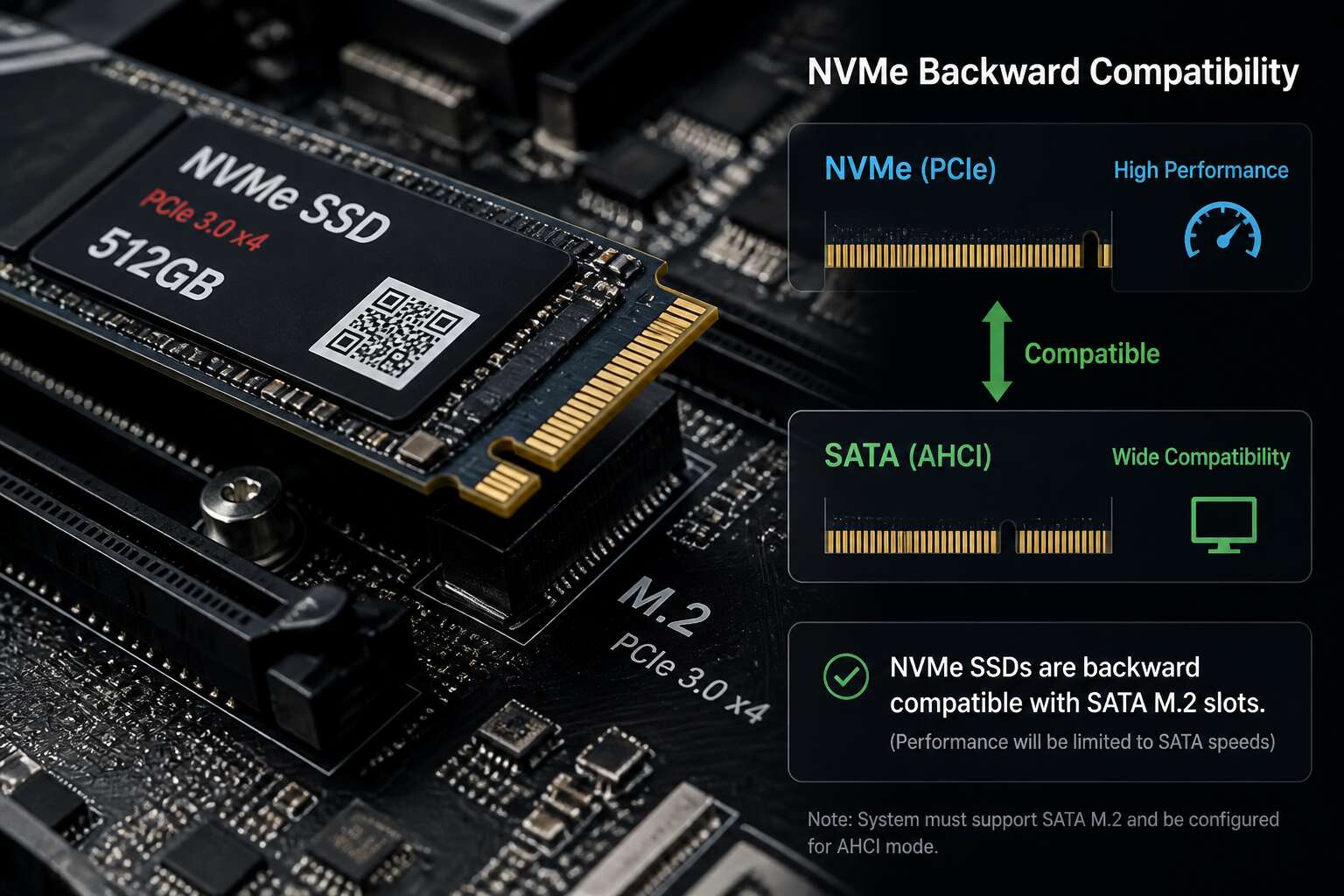
Are NVMe drives backwards compatible? The short answer is yes, but only when the physical and electrical paths align. NVMe relies on PCIe lanes, not the older SATA bus. A motherboard with a dedicated M.2 slot for PCIe will accept these drives. Conversely, a SATA-only M.2 port will not recognise an NVMe model.
Check the slot key first. An M-key drive fits only M-key slots, and a B-key drive requires a different socket. Adapters exist for desktop PCIe slots, but laptops rarely accommodate such workarounds. For older systems, a PCIe 3.0 slot accepts a PCIe 4.0 drive, though it operates at the slower speed.
To confirm your setup, verify these three points:
– The M.2 slot key type (B or M)
– The PCIe generation supported (3.0, 4.0, or 5.0)
– The BIOS version for NVMe boot support
So, are NVMe drives backwards compatible? They are, within these constraints. Always consult your manual before purchasing. That small effort prevents a frustrating and costly mismatch.
Distinguishing NVMe Protocol from Legacy AHCI and IDE
AHCI permits a single command queue with 32 entries. NVMe allows 65,535 queues, each holding 65,535 commands. That is a staggering difference! It explains why the question are NVMe drives backwards compatible matters so much for older hardware.
The interface is a protocol, not a port. NVMe was engineered for parallel flash access, bypassing the legacy AHCI and IDE command sets that were designed for spinning platters. This is a fundamental architectural difference. The physical dependency follows directly. NVMe operates exclusively over the PCIe bus, while AHCI and IDE were bound to the SATA controller. In my experience, older systems cannot recognise NVMe storage without firmware support. Consider the distinctions:
- AHCI targets mechanical drives over SATA.
- NVMe targets NAND flash over PCIe.
- IDE belongs to the parallel ATA era, now obsolete.
These protocol differences define the compatibility landscape. When you ask are NVMe drives backwards compatible, the answer depends on whether the motherboard’s firmware supports NVMe natively.
Key Form Factors That Define Compatibility (M.2, U.2, AIC)
The physical dependency of NVMe is absolute. The protocol demands a direct PCIe connection, which creates distinct implications for hardware. A motherboard from 2010 has no such pathway without a controller card, and even then, BIOS support remains an obstacle. This is where the question of are nvme drives backwards compatible gains real weight.
Form factors shape the practical answer. Consider the differences:
- M.2: a small card that fits directly on the motherboard.
- U.2: a 2.5 inch drive connected via cable to a PCIe port.
- AIC: an add in card that occupies a standard PCIe slot.
Each geometry changes the physical fit, but none alters the firmware barrier. A modern NVMe drive in any form factor stays invisible to a system whose BIOS predates the standard. Compatibility is never decided by the connector alone.
How PCIe Generations Interact With Older Motherboards
Downward Compatibility of PCIe 3.0, 4.0, and 5.0 Slots
Older motherboards from 2018 or 2019 often lack the latest PCIe 4.0 or 5.0 slots. When you slot in a modern Gen 4 drive, the hardware negotiates down to the slower standard. This means a Gen 5 drive works in a Gen 3 slot, just at reduced throughput. The critical takeaway is that speed loss does not equal failure.
– Gen 3 slots cap drives at around 3,500 MB/s.
– Gen 4 slots allow up to 7,000 MB/s.
– Gen 5 slots reach a theoretical 14,000 MB/s.
For South Africans hunting for a bargain on the second-hand market, this backwards compatibility is very practical. You can buy a new high-end drive for a future upgrade and use it immediately in your older board. So, are nvme drives backwards compatible? Absolutely. They simply run at the speed of the slowest link. Just update your BIOS first to ensure recognition.
Automatic Link Negotiation and Speed Scaling
It’s a fair question that plagues many a PC builder: are nvme drives backwards compatible when your motherboard predates the latest standard? The short answer is yes, for the most part. When you install a newer drive into an older slot, the system negotiates a common language. This process is known as link training. The motherboard and the drive automatically settle on the highest speed that both can support, which is a genuinely elegant piece of engineering.
This negotiation is often called speed scaling. It means that a Gen 4 drive plugged into a Gen 3 slot will operate at Gen 3 speeds. You are leaving performance on the table, but you are not breaking anything. The drive remains fully functional, just a bit more restrained. Here is the quick breakdown of the theoretical limits you might see:
– PCIe 3.0 caps out near 3,500 MB/s.
– PCIe 4.0 doubles that to about 7,000 MB/s.
– PCIe 5.0 pushes the envelope further to an enormous 14,000 MB/s.
So, if you buy a top-tier Gen 5 drive for a solid deal, but your older board only speaks Gen 3, you will be limited to that first number. The drive’s potential is bottlenecked by the older interface. However, your system will still boot, and you will still see a massive improvement over a traditional hard drive. The key takeaway regarding compatibility is that the standard is designed to be forgiving, working backwards across generations to ensure the storage ecosystem doesn’t fracture.
Electrical Pinout Versus Physical Slot Differences
Have you ever held a gleaming new NVMe drive in your hand, only to hesitate before the install? That moment of doubt, the question of whether the shiny new component will even work in your trusty, older motherboard, is more common than you might think. The good news is that the architecture of PCI Express was designed with the future in mind, and for the most part, your worries are unfounded.
When we talk about how PCIe generations interact, we are discussing the electrical pinout. Here is the secret: the physical layout of the pins has remained virtually unchanged since PCIe 3.0. A drive built for PCIe 4.0 or 5.0 will slide perfectly into a PCIe 3.0 slot because the electrical contacts are identical. The magic lies in the negotiation that happens when the system powers on. The motherboard and the drive literally introduce themselves to each other, and through a process of back-and-forth signaling, they agree to operate at the slowest common denominator. This ensures that the signal is clean and data flows without errors, even if it isn’t at the maximum theoretical speed.
So, are NVMe drives backwards compatible in a literal sense? Yes, they are physically. But there is a performance nuance to understand. If you pair a cutting-edge Gen 5 drive with a Gen 3 slot, you are locking that drive to a slower data pipe. While the drive remains fully functional and reliable, it will never reach its advertised peak read and write speeds. You are investing in potential that your current system cannot unlock. This isn’t a hardware failure; it is a bottleneck created by the older interface.
To get the full picture, consider these key points about the physical and electrical reality:
– Keying: The notch in the M.2 connector is positioned to prevent you from inserting a drive into a slot that doesn’t support the protocol. This physical safeguard protects both the drive and the motherboard from electrical damage.
– Slot Length: While M.2 drives come in different lengths (like 2280 or 22110), the connector itself is the same. The mounting hole positions vary, but the electrical connection point remains standard.
– Legacy Support: Older motherboards might not have an M.2 slot for NVMe at all. In those cases, you can use a PCIe adapter card that fits into a standard PCIe x4 or x16 slot, but this introduces its own set of speed limitations.
Ultimately, the compatibility question is not about whether it will fit, but rather about how it will perform. The electrical pinout is standardized, which allows for a seamless physical connection across generations. The speed is negotiated dynamically, which protects the integrity of your data. So, while you might not get every last megabyte per second of speed from a newer drive on an older board, you will get a reliable, working storage solution that is leagues ahead of any traditional hard drive. The system manages the differences for you, ensuring that your investment in storage capacity is never wasted, even if the raw speed is temporarily capped.
Lane Allocation and Bifurcation in Multi-Slot Arrangements
When you install a new NVMe drive into an older motherboard, the conversation about compatibility usually stops at the physical slot. But the deeper question involves how your specific board allocates its available PCIe lanes to different components. On many older platforms, the central processor and the chipset share a fixed number of lanes. Adding a high-speed drive might force the system to reduce the bandwidth available to your graphics card, dropping it from x16 to x8 mode. This reallocation is automatic, and while the performance hit to your GPU is often minimal in real-world gaming, it is a measurable trade-off you should be aware of.
Bifurcation adds another layer of complexity. This feature allows a single physical PCIe slot to be split into multiple smaller logical slots, such as dividing one x16 slot into four x4 slots. This is essential for users who want to run multiple NVMe drives on a single adapter card. However, bifurcation support is not universal. It is a feature that must be enabled in the BIOS, and many older or budget-oriented motherboards simply do not offer it. Without this setting, a multi-drive adapter will only recognize one drive, or none at all. So, are NVMe drives backwards compatible with every system? Physically, yes. Functionally, it depends entirely on your motherboard’s lane distribution and BIOS capabilities.
Navigating M.2, U.2, and Adapter Card Compatibility
M.2 Socket Keys (M, B, B+M) and Their Firmware Constraints
When you slot an NVMe drive into a system, the physical connection often creates the first barrier. M.2 drives rely on specific socket keys; a B-key supports SATA and some PCIe x2, while an M-key accommodates PCIe x4 for maximum bandwidth. Many motherboards include a B+M key slot to accept either type, which adds flexibility. However, the question for most upgraders is whether older boards can handle new drives. The answer to whether NVMe drives are backwards compatible hinges on both slot shape and controller support. You cannot force a PCIe-only drive into a SATA-only header, and vice versa.
Adapters change this equation entirely. A simple M.2 to PCIe card lets you bypass motherboard constraints. For enterprise gear, U.2 drives offer a different route; they use a cable or backplane connection that carries four PCIe lanes directly. This method sidesteps M.2 keying issues entirely.
The essential compatibility checks are:
– M.2 B-key for SATA or PCIe x2, M-key for PCIe x4.
– U.2 requires an adapter with power and data cables.
– AIC (Add-in-Card) requires a free PCIe slot, not a M.2 socket.
– Firmware must support NVMe protocol, not just AHCI.
Even with physical adapters, the firmware on your motherboard must recognize the drive. Legacy BIOS systems lack the NVMe boot module, so while the drive may work as storage, booting from it fails. A UEFI update often resolves this. The deeper reality is that NVMe drives are backwards compatible in terms of interface, but not always in terms of system intelligence. You can adapt the plug, but you cannot adapt the motherboard’s code. For South African users dealing with limited import options, checking the manual before buying saves a painful return process. Plan for the slot, verify the BIOS, and the drive will run.
Using PCIe Adapter Cards to Connect NVMe Drives to Non-M.2 Slots
People often ask are nvme drives backwards compatible when they hold a spare drive but find no empty M.2 socket. A PCIe adapter card answers that question. It converts the M.2 edge connector into a standard PCIe card fitting any free x4, x8, or x16 slot.
These adapters cost little and require no drivers. The motherboard sees the NVMe controller directly through the PCIe bus. Speed depends on the host slot’s generation and lane count.
- Confirm the adapter supports NVMe rather than SATA alone.
- Check your PCIe slot’s physical length versus the card.
- Verify the card’s bracket fits your chassis.
For booting, your UEFI must include the NVMe module. Older boards without it will treat the drive as a storage device only. No adapter can bypass that limitation. It is the clearest answer to whether are nvme drives backwards compatible. The interface is, the firmware often is not.
U.2 Connectors and Their Compatibility With Enterprise vs. Consumer Systems
If you are asking are nvme drives backwards compatible because you are dealing with enterprise storage, you will soon meet U.2 connectors. These are common in professional drives and offer high capacity for long term storage. Consumer motherboards usually have minimal U.2 ports. You will need the M.2 to U.2 adapter cards, which are notoriously bulky. The cables are also a real challenge to route inside a standard desktop chassis.
This is a different compatibility puzzle than lane speed or slot shape. U.2 supports the NVMe protocol with a dynamic physical connector system. It fits perfectly in an enterprise server with a backplane. On a consumer board, the process becomes messy.
For an average user, consider the difference in system design:
– Enterprise systems are built with U.2 hot swap drives and long cabling.
– Consumer systems are built with M.2 drives on a metal tang, handling simple installation.
– Servers spend more on hidden flash storage density and shared controllers.
– Desktops prefer compact GPUs and worry less about drive density.
There is no conflict if you know the interface. However, you must verify if your U.2 drive uses triple-level cell (TLC) NAND or quad-level cell (QLC) NAND. Adapter cards rarely include the firmware that can handle their thermal output during sustained writes. You may need active cooling for the drive. The basic answer to the question of are nvme drives backwards compatible is often about the physical and firmware connection. The predictability of the PCIe bus is a boon, yet the total ecosystem of storage rooms is not always in your favor.
Motherboard, BIOS, and Firmware Limitations That Block Backward Compatibility
Legacy UEFI Versus BIOS CSM Modules for Booting NVMe
The question “are nvme drives backwards compatible” often collapses at the motherboard’s firmware layer. Legacy BIOS systems, built around interrupt-driven devices, possess no native code to enumerate NVMe storage. The drive may draw power and negotiate a PCIe link, yet the firmware remains blind to it.
UEFI changed this, but early implementations brought their own quirks. Some boards require a Compatibility Support Module to boot from NVMe, while others need a vendor-supplied option ROM flashed separately.
- Older UEFI revisions might only detect the drive during Windows installation, not during boot.
- Secure Boot policies can block unsigned NVMe drivers unless disabled.
- Some motherboards list the drive as a generic storage device, eliminating the boot option entirely.
So when asking “are nvme drives backwards compatible”, remember that physical compatibility means little if the BIOS cannot hand boot control to the SSD.
Bootable vs. Secondary Storage Support Without Native NVMe Drivers
Motherboard limitations can sabotage backward compatibility. A system might recognize an NVMe drive as a valid PCIe device, yet its firmware lacks the driver needed to treat that drive as bootable media. The question, are nvme drives backwards compatible, hinges on whether the firmware includes NVMe boot support.
The gap between bootable and secondary storage is significant. Without native NVMe drivers, an operating system can still use a drive for data once its own driver loads. Booting, however, asks more. The firmware must hand execution to the SSD’s loader, and if no NVMe driver exists in the firmware, the boot process stops cold.
- The drive appears in the OS but never in the boot menu.
- The firmware sees the drive only as a generic PCIe device.
Meanwhile, the same drive works fine as a secondary volume once the OS controls the system.
Chipset-Attached vs. CPU-Attached PCIe Lanes and Bandwidth Sharing
Picture this: you have just unboxed a blazing-fast NVMe drive. The promise of incredible speeds is tangible. Yet, a nagging question persists: are NVMe drives backwards compatible with older systems? The answer is nuanced, and it hinges entirely on the motherboard’s firmware rather than the drive itself.
Modern NVMe drives communicate over the PCIe bus. This is a universal language for high-speed components. Your drive will physically fit into a compatible slot, and the system will often recognize it as a PCIe device. However, recognition is not the same as usability. The legacy BIOS on many older motherboards simply lacks the code to initialize NVMe storage as a boot device. This is the fundamental barrier.
To clarify the landscape, consider the role of the system firmware.
– The UEFI BIOS is the modern standard. It contains native NVMe drivers, allowing for seamless booting and management.
– The Legacy BIOS predates NVMe. It relies on older AHCI or IDE protocols. Without a special driver injected into the firmware, it will not see your NVMe drive as a boot option.
This explains a common scenario. You install the NVMe drive, and the system’s BIOS detects it as an “Unknown PCIe Device.” The disk is present on the bus, but the firmware does not know how to read the partition table or load the operating system from it. Consequently, the drive does not appear in the boot menu, frustrating users who expect plug-and-play functionality.
The physical connection alone is not enough to bridge the technological gap. Even if the electrical contacts align perfectly, the software layer in the firmware must understand the storage protocol. Without that, the drive remains a silent, high-speed ghost within the chassis. The drive works, but only as far as the operating system can see it after booting from another source. Once Windows or Linux loads its own drivers, the NVMe drive becomes fully accessible as a secondary storage device. This is the core of the compatibility question.
So, are NVMe drives backwards compatible? In the strictest sense of booting, no. In terms of secondary storage, it depends on the generation of your PCIe slots. The drive will negotiate a slower speed on older PCIe 2.0 or 3.0 slots, but it will function. The ultimate limitation is the intelligence embedded in your motherboard. For a true boot drive, you must have a UEFI-based system. Otherwise, you are relegated to using this advanced hardware as a high-speed vault, never as the primary engine of your operating system.
How Firmware Updates Can Enable or Harden NVMe Support
The motherboard’s printed circuit board may offer a physical M.2 slot, but that does not guarantee the firmware speaks the NVMe language. When users ask, “are nvme drives backwards compatible,” they often overlook the system’s foundational code. Your motherboard’s BIOS is a legacy program with rigid parameters. If your board shipped before NVMe existed, the flashing prompt might not recognize the storage device at all. The drive appears absent, even to the operating system installer, because the firmware cannot enumerate it on the bus.
Firmware updates present an intriguing workaround for older boards. Some motherboard manufacturers added support through modified UEFI modules. You flash a new BIOS, and the system magically sees your drive. However, the specific questions of are nvme drives backwards compatible become complicated by two key constraints:
- Some boards lack a built-in driver, yet a modified BIOS adds the driver but fails to enable bootable support in South Africa’s hot climate.
- Secure Boot restrictions and OPAL security features can block a signed driver that was never intended for that particular generation of silicon.
Aboard newer systems, firmware updates often resolve odd compatibility quirks of the PCIe link training. An update might allow a stable connection at PCIe 3.0 speeds rather than dropping the link completely. Without that update, the device remains a paperweight. So, understanding are nvme drives backwards compatible means accepting that your storage drive is only as capable as the firmware on the board allows it to be.
Power Delivery and Thermal Output Constraints on Older Boards
PCIe Slot Power Limits Versus Adapter Card Power Inputs
Firmware can block NVMe compatibility even when the physical slot fits. A legacy BIOS without an NVMe option ROM will power a PCIe adapter but never initialize the drive. The system may even detect the adapter card, yet no storage device appears during boot. Updating the motherboard firmware from BIOS to UEFI often changes that, but only if the board maker provides a new image.
Power delivery is a separate constraint. An older PCIe slot might supply just 25W, while an adapter card with multiple NVMe inputs draws up to 75W from its own power connector. If the card cannot get enough current from both sources, the drive behaves erratically or drops offline under sustained writes. So the answer to are nvme drives backwards compatible depends on firmware and power delivery working together, regardless of the connector.
Real-World Upgrade Scenarios and Pitfalls to Avoid
Installing an NVMe Drive Into a SATA-Only or Legacy Port
Mid-build, the question of are nvme drives backwards compatible turns real. A user eases an M.2 NVMe drive into a SATA-only socket on an older motherboard from a Johannesburg office. The slot fits perfectly. Then nothing registers. That SATA connector carries no PCIe wiring, so the NVMe controller never reaches the bus. The system boots to an empty desktop, and the drive remains present in the metal yet absent in the firmware.
Pitfalls multiply with legacy ports. A physical fit does not guarantee electrical negotiation. Older BIOS code in a pre-2015 office PC often ignores the drive entirely, leaving a black screen with no bootable volume. Intermittent detection plagues others, where the drive shows up after cold boot but vanishes following suspend.
Symptoms surface in distinct patterns:
- A BIOS that lists the M.2 slot as empty
- Blinking activity lights with zero partitions present
- Systems that detect the drive but refuse to assign letters
The honest answer to whether NVMe drives are backwards compatible lives in the port, not the physical shape.
Performance Degradation and Bottlenecks When Using Non-PCIe 4.0 Slots
Can you drop an NVMe drive into an older machine? Yes, but only if you play by the rules. The physical connection is the easy part. A PCIe adapter card turns any spare x4 or x16 slot into a viable home. But the real question about whether NVMe drives are backwards compatible extends beyond the socket. It lives in the firmware and the operating system.
For older motherboards, particularly those from the pre-2015 era, the experience varies wildly. You might boot up, see the drive in the BIOS, and think you are golden. Or, you might face a system that refuses to acknowledge it exists. The key is preparation. Consider these steps when retrofitting:
- Check your motherboard manual for PCIe slot generations and lane availability. A Gen 2 slot will work, but it will cap your speeds dramatically.
- Confirm your BIOS supports UEFI boot. Legacy BIOS modes often cannot boot from NVMe without a modified driver, which is risky.
- Update your board’s BIOS first. Manufacturers often add NVMe support through later patches, even for older models.
The performance hit on older slots is significant. You might see sequential read speeds drop from 3,500 MB/s to under 800 MB/s. That is still faster than any SATA SSD, so it is not a dealbreaker. However, the drive’s random read and write operations, the ones that matter for booting and loading applications, will still feel snappy.
Just remember that the operating system needs the right driver. Windows 10 and 11 have native support. Linux kernels from version 3.3 onward handle it perfectly. If you are running an older OS, you will need to inject third-party drivers into the installation media. Otherwise, the installer simply will not see the drive. It is a matter of asking the right questions before you buy the PCIe adapter, not after you realise the boot screen is empty.
Mixing Different PCIe Generations in RAID or Multi-Drive Enclosures
Upgrading a single drive is straightforward, but the real challenges emerge when you build a multi-drive array. Mixing PCIe generations in a RAID setup forces every component to operate at the speed of the slowest link, which is a critical detail when planning a storage overhaul.
Consider the typical profile of an older workstation upgrade:
– Gen 3 drives offer the best compatibility and stability for legacy platforms.
– Gen 4 drives provide higher peak speeds but will operate at reduced bandwidth in older slots.
– Hybrid configurations require careful testing, as timeout errors can occur during array rebuilds.
The most frequent pitfall involves pairing a fast Gen 4 NVMe drive with a Gen 3 board while simultaneously using a RAID controller that is not designed for NVMe protocol. This scenario often leads to intermittent disconnects under sustained load. For a South African user dealing with fluctuating power grid conditions, this data integrity risk is amplified. You should always verify that your controller and card combination supports the drive’s native protocol during initialization, otherwise you might face an array that drops offline during a crucial write operation. Ultimately, while the question of whether are nvme drives backwards compatible has a technical yes, the practical answer depends heavily on the surrounding hardware ecosystem you are building within.

0 Comments