Understanding PCI to NVMe Adapters
What Is a PCI to NVMe Adapter and Why Do You Need One
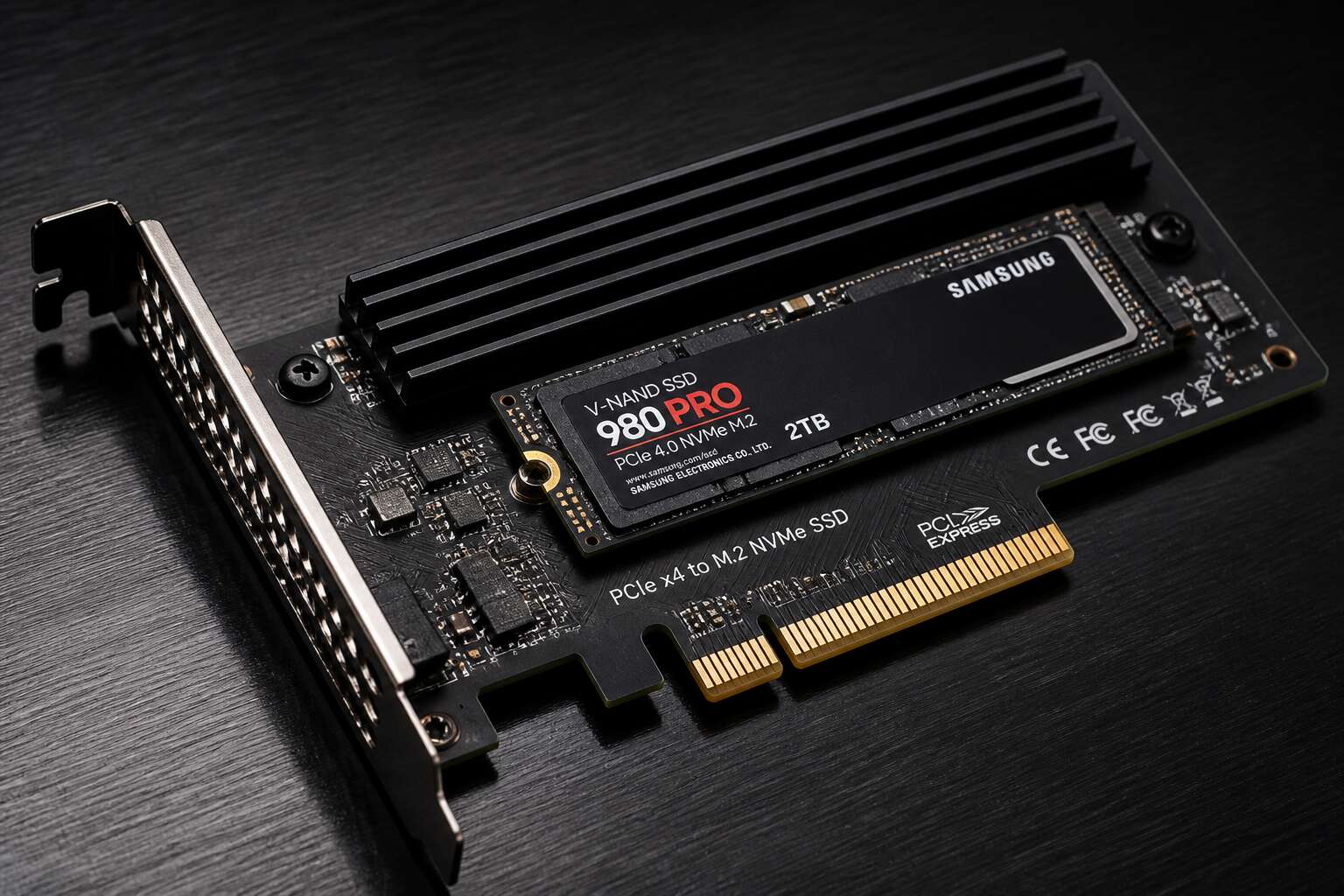
Your motherboard has a PCIe slot that has been gathering dust since 2019. A pci to nvme adapter transforms that neglected slot into a working home for NVMe storage. This is a sensible upgrade for anyone who refuses to buy a new board simply to gain an M.2 port.
These adapters make sense when your motherboard lacks M.2 support, or when every existing port is occupied. I find them especially useful for South African users holding onto older boards while component prices climb.
A typical adapter provides:
- A single M.2 slot for one NVMe drive
- Support for PCIe 3.0 or 4.0 speeds
- A low-profile bracket for compact cases
Installation is straightforward, though your case may require a screwdriver and a moderate amount of patience.
How the Adapter Bridges PCIe and NVMe Protocols
The PCIe slot talks in serial lanes, and NVMe drives talk in the same dialect. So a pci to nvme adapter does not translate protocols; it simply routes the right signals to the right pins. The adapter reorients the M.2 connector and directs four lanes of data from the slot to the drive’s edge contacts. Power flows through too, but different boards may supply different voltages. That is why these adapters have no onboard controller.
What the bridging actually involves is straightforward:
- Mapping the physical pinout between M.2 and the PCIe slot
- Passing clock and reset signals without any buffering
- Handling card detection through the presence pins
Most adapters are passive, meaning the electrical path stays direct. Your operating system sees a standard NVMe drive, no extra software needed. The adapter is mechanical, not magical.
PCIe Slot Types and Physical Compatibility
One PCIe slot can run at full speed while its neighbour offers a fraction of that, and the difference is purely physical. The slot’s length, wiring, and keying set the boundaries for any pci to nvme adapter. A typical adapter needs four lanes, so a slot wired for fewer lanes will throttle the drive. Physical length is the first restriction: an x16 slot accepts the full card, while x1 and x4 slots have shorter openings that reject most adapters outright.
Compatibility also hides in the wiring. Some boards sport long slots that only carry eight lanes. That works, but the manual shows the exact allocation. Here is the breakdown:
- x1 slots: physically closed to standard adapters
- x4 slots: sufficient, but check the slot’s keying
- x8 and x16 slots: recommended; verify active lane count
Before buying a pci to nvme adapter, inspect your motherboard diagram. The socket’s physical length tells what fits, and the chipset’s lane allocation tells what performs.
Key Advantages of Adding NVMe Storage via a PCIe Slot
A single PCIe slot can deliver more bandwidth than your entire SATA controller. The pci to nvme adapter makes that bandwidth usable. For South African users managing large media libraries or geological datasets, the advantage shows up in daily tasks: projects load faster, backups finish sooner, and system responsiveness improves without purchasing a new machine. The core benefit is that NVMe storage bypasses older SATA constraints entirely.
- Sequential reads move from 550 MB/s into multiple gigabytes per second
- Latency drops, which matters for random access workloads
- Legacy systems gain modern storage performance
This approach preserves your existing drives. You keep the boot drive or storage pool, add an NVMe device through the PCIe slot, and let the adapter handle the translation. It extends the useful life of hardware that would otherwise require replacement.
Choosing the Right PCI to NVMe Adapter
Form Factor Considerations: M.2 vs U.2 vs Add-in Card
Most pci to nvme adapter mistakes happen after the slot is chosen. The drive form factor determines everything. M.2 adapters dominate for their size, yet they hide a real problem: thermal throttling. A drive that runs at 70 degrees Celsius will quietly drop performance during a long render in a Joburg summer. U.2 adapters avoid this by powering enterprise drives through a separate cable, but they need case space and a compatible backplane. Add-in cards with multiple M.2 slots consolidate storage, though they require a x16 slot with enough lane bifurcation support.
Here is the breakdown that matters:
- M.2 adapters fit compact cases but need airflow.
- U.2 adapters suit high endurance drives, but cable management gets messy.
- Add-in cards handle several drives, yet your motherboard must support bifurcation.
I have watched builders pick the cheapest pci to nvme adapter only to replace it after a thermal shutdown. That form factor error costs them double.
PCIe Generation Matters: Gen3, Gen4, and Gen5 Explained
The PCIe generation of a pci to nvme adapter determines the maximum bandwidth the drive will see. Gen3 provides roughly 3.9 GB/s across four lanes, Gen4 about 7.9 GB/s, and Gen5 around 15.8 GB/s. Put a Gen3 adapter in a Gen4 slot, and the drive will operate at Gen3 speeds.
Motherboard slots from different generations are backward compatible, but they negotiate down to the slowest component. I have watched a Gen5 drive run at Gen3 speeds because the adapter was the weak point. Older chipsets may only expose Gen3 lanes, while current AMD and Intel platforms can route Gen5 to a physical x16 slot.
- Gen3 adapters move data at about 3.9 GB/s with four lanes.
- Gen4 adapters reach nearly 7.9 GB/s with the same lane count.
- Gen5 adapters push past 15 GB/s but run hot under load.
CPU lane allocation also influences real performance. A pci to nvme adapter connected through the chipset may share bandwidth with USB or network controllers, so the generation number printed on the box does not guarantee sustained speed.
Single-Slot vs Multi-Slot Adapters for Multiple Drives
Choosing between a single-slot and multi-slot PCI to NVMe adapter depends on how many drives you need. The single-slot card is the sensible choice for one M.2 drive. It leaves your airflow intact and consumes less power. The multi-slot variant accepts two or four drives, giving one x16 slot several drive positions.
For a home workstation, a single-slot PCI to NVMe adapter often suffices. For a folder full of 4K footage or virtual machine images, the multi-slot card is worth the extra cost. Here is what I weigh:
- Single-slot: one M.2 drive, cooler operation, lower price.
- Multi-slot: multiple drives, but shared bandwidth and higher heat.
On an older chipset, the multi-slot adapter may split four lanes across drives. Each drive then runs at half speed, a compromise that matters for sustained transfers. Choose the card that matches the number of drives you actually own.
Checking Motherboard and BIOS Support for Bifurcation
Nothing kills a build faster than a storage card that arrives ready to work, only to face a motherboard that refuses to cooperate. Bifurcation is the BIOS feature that splits one PCIe slot into smaller lane groups. A pci to nvme adapter holding several M.2 drives depends entirely on this setting.
Manufacturers name the option differently. One board calls it PCIe lane split, another buries it in advanced menu pages. Firmware revisions also matter. Older BIOS versions often lack bifurcation entirely, even on capable silicon.
- Some boards only support x8x8, which covers two drives.
- Others expose x4x4x4x4, unlocking four full positions on an x16 slot.
- A few force you to enable resizable BAR first before the split appears.
The physical slot width means nothing if the BIOS cannot separate the lanes. The adapter itself becomes a silent, expensive placeholder.
Brand Reliability and Popular Models Worth Considering
Brand reliability starts with the components on the board, not the logo on the bracket. A pci to nvme adapter with weak power delivery will drop drives under sustained load or throttle write speeds when the PCB heats up. Well regarded manufacturers specify their switching circuits, use industrial grade capacitors, and include proper thermal pads. Generic cards often skip those details.
Popular models worth considering include:
- ASUS Hyper M.2 x16 Gen4 for four drive builds
- Sabrent EC-P4E for single drive setups
- ICY DOCK ToughArmor for hot swap bays
Each adapter handles lane splitting differently, so the right choice depends on your motherboard’s bifurcation support. Local availability matters in South Africa. A card bought from a local stockist with a valid warranty is worth more than a cheaper import that fails after two months and costs more to return than replace.
Installation and Setup Guide
Tools and Components You Need Before Starting
Gathering the right components turns a daunting installation into a straightforward task. For most builds, you need a Phillips screwdriver, an anti-static wrist strap, and the NVMe drive itself. Some adapters include a low-profile bracket, but check your case clearance before opening the packaging.
Before touching hardware, review your motherboard diagram. Identify which PCIe slot best matches the adapter’s generation and lane requirements. Also verify that your power supply has a spare SATA or Molex connector if the card demands auxiliary power.
Prepare these essentials:
- Anti-static wrist strap
- Phillips head screwdriver (size 1 or 2)
- Thermal pad or heatsink, if provided
- PCIe slot cover removal tool
For a multi-drive pci to nvme adapter, check if your BIOS supports bifurcation. Test the card outside the case first to avoid repeated disassembly. A little preparation saves significant frustration later.
Step-by-Step Physical Installation in a PCIe Slot
With your workspace prepped and the adapter in hand, physical installation is mainly about alignment and pressure. Locate the correct PCIe slot on your motherboard. The slot’s latch should be open. Remove the rear bracket cover that lines up with the slot. Insert the pci to nvme adapter firmly and evenly until the latch clicks.
If you are fitting a multi-drive card, keep the adapter level as you push down. Uneven pressure can bend the PCB or damage the PCIe contacts. Once seated, secure the bracket to the case using the screw you removed earlier. I have seen cards fail simply because the bracket was left loose.
The sequence matters:
- Power off and unplug the PC.
- Open the case side panel.
- Align the adapter with the slot keying.
- Push down until the retention clip engages.
- Screw the bracket into place.
Before closing the case, check that no cables obstruct the card’s cooling fins. If the pci to nvme adapter has a power input, attach it now.
BIOS/UEFI Configuration to Enable NVMe Booting
Power on and press Del or F2 to enter the UEFI. The pci to nvme adapter may not appear as a boot option until you adjust storage settings. Look for CSM, Secure Boot, or PCIe subsystem menus.
Set CSM to disabled or enable UEFI mode. Disable Secure Boot if the drive shows up but fails to load. Some motherboards require “Above 4G Decoding” enabled. If the drive remains invisible, find “PCIe Bifurcation” and assign x4 lanes to the slot you used.
- Save changes and reboot.
- Open the boot menu.
- Select the NVMe drive.
Now install Windows or Linux normally. The adapter functions as your primary boot disk.
Performance, Use Cases, and Limitations
Real-World Performance: Sequential and Random Read/Write Speeds
Real world performance often surprises even sceptics. A pci to nvme adapter can turn an ageing workstation into a serious storage machine. Sequential reads sail past 3,500 MB/s. Random 4K writes reveal the real benefit, especially when bifurcation allows multiple drives to operate in parallel.
Use cases include high-bitrate video editing, virtual machine hosting, and large database operations. The adapter resolves SATA bottlenecks cleanly. Limitations exist. Consumer motherboards often lack spare PCIe lanes. Older BIOS versions may refuse to boot from NVMe. Passive heatsinks can throttle under sustained load.
- Lane allocation varies by motherboard
- BIOS versions may not support NVMe boot
- Chassis airflow affects thermal performance
A pci to nvme adapter is not a blanket solution. For specific workflows, it delivers remarkable gains.
Best Scenarios for Using an Adapter: Desktops, Workstations, and Servers
An idle PCIe slot is wasted bandwidth. A pci to nvme adapter turns that empty slot into the fastest storage connection most systems will ever see.
Desktops benefit when the motherboard has a spare slot but no M.2 connector. Boot times shrink, and application launches stop stalling on SATA bottlenecks. I have watched ageing office PCs feel brand new after this single change.
Workstations are where this adapter proves essential. Rendering engines and 3D sculpting tools demand sequential reads above 3,000 MB/s. A single SATA drive cannot deliver that. With bifurcation, multiple NVMe drives operate in parallel, keeping the CPU fed during heavy compositing.
Servers need careful planning. Enterprise boards usually have spare PCIe lanes, but passive heatsinks struggle in cramped chassis. Airflow decides whether the adapter performs or throttles. In a well-ventilated rack, a pci to nvme adapter provides local NVMe speeds that beat network storage for transaction-heavy workloads.
Power Consumption and Thermal Management Under Load
A drive rated for 3,500 MB/s can drop below 1,500 MB/s within minutes when airflow fails. Performance under sustained load is where a pci to nvme adapter is proven. NVMe controllers do not throttle gently. Workstations hammering sequential reads benefit most, while servers running transaction-heavy workloads need active airflow over the heatsink.
Power consumption is modest, roughly 5 to 8 watts per drive, but heat concentrates in a small area. A single M.2 drive on a passive adapter can survive with a case fan near the slot. Multi-drive adapters are less forgiving.
- Place the adapter where airflow reaches the controller, not merely the heatsink.
- Check sustained read speeds after ten minutes of load, not peak benchmarks.
Limitations appear under load. Most consumer pci to nvme adapter models never deliver full bandwidth to two drives simultaneously. Verify your motherboard’s bifurcation support before expecting parallel performance.
Comparing Adapter Performance to Native M.2 and U.2 Connections
Native M.2 slots offer the shortest electrical path to the CPU, but a quality pci to nvme adapter narrows that margin to a few percentage points on sequential workloads. The real divergence appears in latency sensitive random I/O, where extra trace length and slot contention add measurable microseconds at high queue depths. U.2 connections, meanwhile, tolerate enterprise duty cycles through wider thermal envelopes and dual port paths.
Use cases follow these tradeoffs. If you are editing uncompressed video on a workstation, the difference between native M.2 and a properly cooled adapter rarely justifies replacing hardware. A database server with continuous write loads, however, leans toward U.2 for endurance and serviceability.
- Adapter: best for adding multiple drives without swapping motherboards
- Native M.2: lowest latency for a single boot drive
- U.2: preferred for hot swap arrays and 24/7 sustained writes
Limitations appear in shared bandwidth. A pci to nvme adapter running two drives divides the available lanes, and without bifurcation support the motherboard may refuse to recognise the second drive entirely.
Potential Bottlenecks with Older Chipsets and PCIe Lanes
Pop quiz: how many PCIe lanes does your chipset actually give you? On older platforms, that number can be stingy, which makes a pci to nvme adapter a lesson in physics. Performance degrades when the adapter sits in a Gen2 x4 slot, because the drive’s speed gets throttled to a third of what it can do. Native connections avoid this by design, but for an old motherboard, the adapter is still the only game in town.
Use cases for these retro builds are straightforward:
- Adding NVMe to a legacy office PC
- Extending a workstation’s storage without a new board
- Testing drives on a spare test bench
The limitations hit hardest with older chipsets. Lane sharing means your graphics card and pci to nvme adapter fight for bandwidth, and without bifurcation support, the second drive on a dual slot adapter vanishes from BIOS entirely. Check your chipset’s lane map before buying.
Ensuring Your NVMe Drive Runs at Full Speed Without Throttling
The work happens in the BIOS settings. A pci to nvme adapter only performs as well as the PCIe link allows. Disabling power saving features like ASPM and native power management keeps the link active for sustained workloads. That alone stops random throttling during long transfers.
Use cases are direct. A workstation with a dead M.2 slot gets new storage life. A server needs extra capacity for logging. A hobbyist puts an old motherboard back to work.
- Workstation storage expansion
- Server log drive
- Old motherboard reuse
Limitations emerge when the motherboard treats the adapter as a secondary device. Lane sharing remains a problem, but not the only one. Thermal constraints appear in cramped cases. The drive’s controller slows down without airflow. I have seen the adapter hit full sequential speeds after simply pointing a small fan at it!
Troubleshooting and Common Questions
Why Isn’t My System Recognizing the NVMe Drive
You have slotted your new drive, secured the bracket, and closed the chassis. Yet the system remains stubbornly silent about your NVMe drive. This is the moment where many users assume the hardware is faulty. Often, the culprit is simpler: the BIOS is set to legacy mode rather than UEFI, or the M.2 socket on the adapter carries a different keying than your drive. Double-check that the card is fully seated in the longest available PCIe x16 slot, as some secondary slots share bandwidth with other peripherals.
If the drive still refuses to appear, investigate the storage controller. Your pci to nvme adapter might be functional, but the motherboard could lack the necessary PCIe lane allocation. A quick test involves installing the drive in another machine to isolate the fault. Common issues include:
- The adapter lacks a physical LED to indicate power delivery.
- The NVMe drive requires a firmware update before first detection.
- The PCIe slot is disabled in the BIOS under “Peripherals.”
Patience matters here. Some older boards take several seconds to enumerate a newly attached NVMe device, so allow a full boot cycle before assumed failure.
Resolving Boot Issues and Driver Conflicts
The true test of a pci to nvme adapter arrives when the system boots into an operating system that has never met your new hardware. A drive that appears in BIOS but vanishes in Windows or Linux often points to driver conflicts rather than physical failure. Before reinstalling anything, check whether the pci to nvme adapter uses a controller chip requiring its own driver. Many adapters are passive, which is good, but some need specific firmware.
For boot issues, order matters. Ensure your OS installer has the proper NVMe driver injected, otherwise setup cannot see the disk. With an existing system, work through these steps:
1. Update chipset drivers from your motherboard vendor.
2. Disable CSM and enable UEFI only.
3. Confirm secure boot is not blocking unsigned adapter firmware.
Frustrating boot loops often stem from stale drivers that still reference the old SATA controller. The adapter itself rarely causes driver drama. The operating system simply needs a clean nudge to recognize where the storage now lives.
Can You Boot an Operating System from a PCI to NVMe Adapter
Can you boot an operating system from a pci to nvme adapter? Yes, provided your motherboard supports the feature. Most modern boards with UEFI firmware handle this without fuss. Older boards may need a modified BIOS or an OpROM injection to recognise the drive at boot time. The practical answer depends on three things:
- The chipset on your motherboard and its PCIe lane allocation.
- Whether your UEFI has the NVMe driver built in.
- If the adapter’s controller chip is passive or needs its own firmware.
Before you commit, check your board’s manual or vendor site. I have seen some chipsets only allow booting from a specific slot. Test with a spare drive first. If the system stalls, move the adapter to a different PCIe slot or update the firmware. Boot behaviour varies, so trial and error often clears things up.
Is There a Performance Drop Compared to a Direct M.2 Connection
Straight answer to a common worry: does a pci to nvme adapter lose speed against a native M.2 slot? Not if the PCIe link width and generation line up with what your SSD expects. Plug a Gen4 drive into a Gen3 slot and you will see a measurable drop, but that is a lane negotiation issue, not a flaw in the adapter itself.
I have also seen cases where the drive works in one slot and throws errors in another. That usually points to electrical noise or a shared lane that gets diverted to other hardware. Move the card, check your motherboard diagram, and test again. Weird boot behaviour after a power outage? That often comes down to the controller chip on the adapter needing a few seconds to initialise.
A pci to nvme adapter is a translator, not a bottleneck. If the link is clean and the slot is powered correctly, the performance matches a native connection.

0 Comments